The device picker
Only the devices you want on screen
Search, filter by room, type and reachability, and tick exactly the devices that deserve a tile.
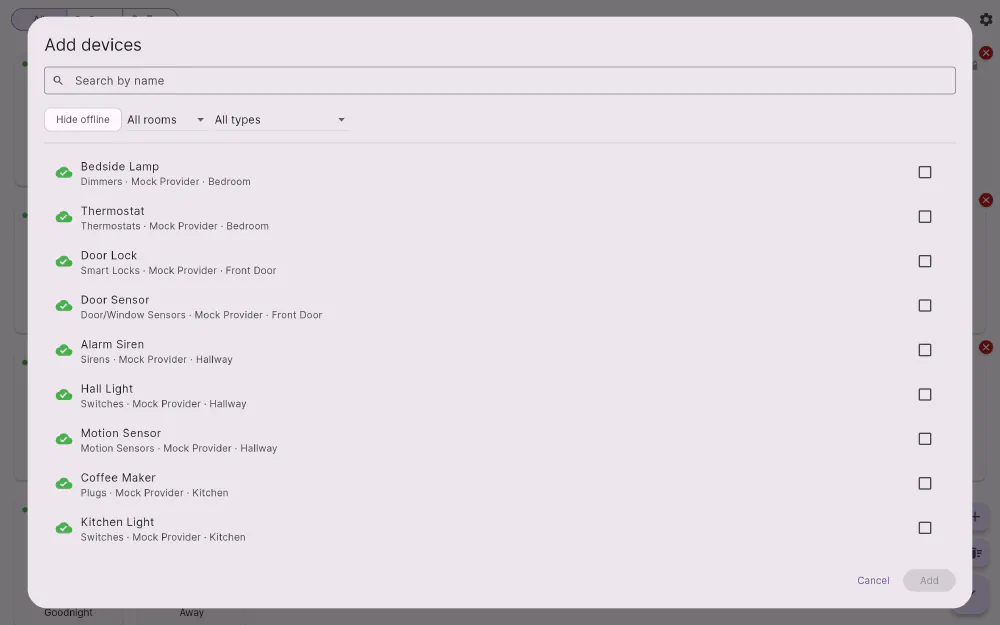
Adding devices to the dashboard is a deliberate step in Flick, not something that happens to you. In edit mode, Add devices opens a picker over the grid with everything the connected hubs know about.
Finding one device among many
Three tools, and they compose:
- Search filters by name as you type.
- Filters narrow the list by room, by device type, and by whether the device is currently reachable.
- Ordering puts reachable devices first, so anything unplugged or asleep sinks to the bottom instead of getting in your way.
Each row tells you what the device is and which connection it came from, which is the quickest way to tell two similarly-named devices apart when you have more than one hub.
Ticks are sticky
Selections are held independently of the filter, so you can search for “lamp”, tick three of them, clear the search, filter by the kitchen, tick two more, and the Add button still shows all five. Filtering hides rows; it never un-ticks them.
Offline devices are still fair game
A device that is currently unreachable is dimmed and tagged Offline, but it stays selectable. That is deliberate: a device being asleep, or its hub being mid-restart, is not a reason to stop you putting it on your dashboard. The same philosophy runs through the whole app — Flick reports what it knows and lets you act anyway.
Scenes have no per-device reachability at all, so they always appear as available. And the same device can be picked more than once, because a tile is a position on your grid rather than an exclusive claim on the device.
Get Flick
Free to download. Bring your own hub — Flick talks to the equipment you already own.