Edit mode
A layout you arrange yourself
Drag tiles where you want them, spread them across pages, and Flick remembers the arrangement.
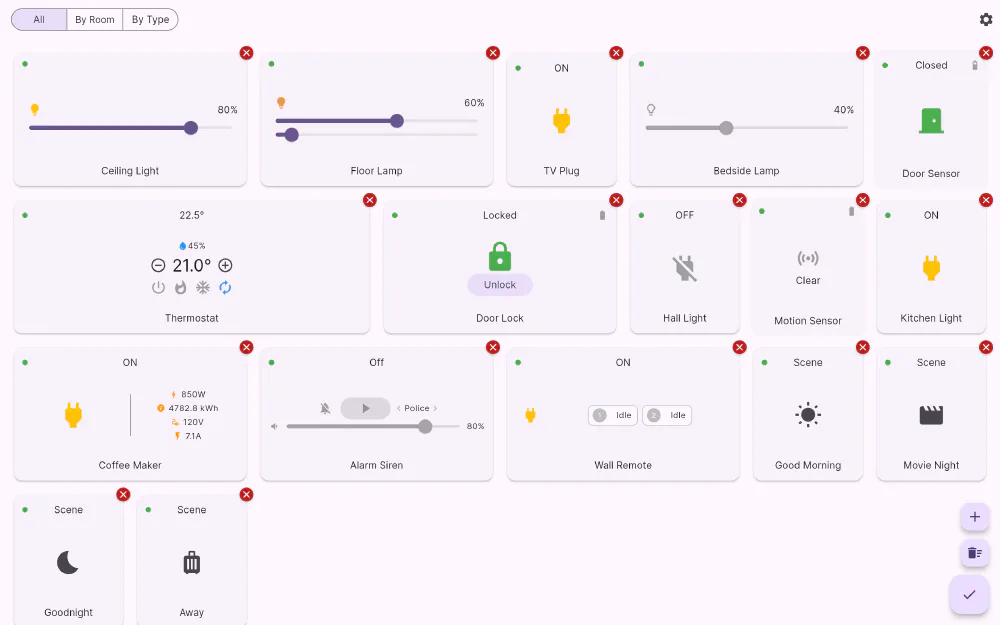
The order a hub reports its devices in is not the order you use them. Flick’s dashboard is a grid you lay out by hand, the way you would arrange app icons.
Getting into edit mode
Long-press any tile, or tap the pencil button in the corner. The tiles lift, and now you can:
- Drag a tile to any free position on the page.
- Carry a tile to another page by dragging it to the edge — pages work like a home screen, so seasonal or rarely-used devices can live one swipe away.
- Add devices from a searchable picker.
- Add scenes, so a one-tap scene sits alongside the devices it controls.
- Remove a tile with the “✕” badge in its corner — which never removes the device from your hub, only from this layout — or clear a whole page at once.
Edit mode ends when you tap Done, so a stray tap on the background never drops you out halfway through rearranging.
Because the tile list is yours rather than a live mirror of the device list, a tile stays put when its device goes quiet: it shows an offline placeholder in the same spot and comes back to life when the device does. The same device can also appear more than once — handy when you want the porch light both in the “coming home” corner of page one and next to the door sensor on page two.
Tiles are sized for their job
Every device class has a preferred tile width. A dimmer or a colour light asks for a wide tile because it carries sliders; a plug or a sensor is happy in a small square. Flick places tiles at their natural size, so a row can mix one wide control with two compact status tiles instead of padding everything out to the same shape.
The arrangement is yours, and it sticks
Positions are saved as you make them — page, row and column per tile — and restored on the next launch. Because the layout is stored as positions rather than as a fixed pixel grid, it survives the things that would otherwise scramble it: rotating a tablet, resizing a desktop window, or moving to a screen with room for more columns. Flick rebuilds the grid at the new width and keeps your ordering.
Newly connected devices never barge into your layout, either. Adding a hub does not rearrange anything you have already placed — new devices appear in By Room and By Type, and you decide whether they earn a tile on the dashboard.
Get Flick
Free to download. Bring your own hub — Flick talks to the equipment you already own.