The home screen
One dashboard for everything
Every device you own on one page, live, with no folders to open and no accounts to switch between.
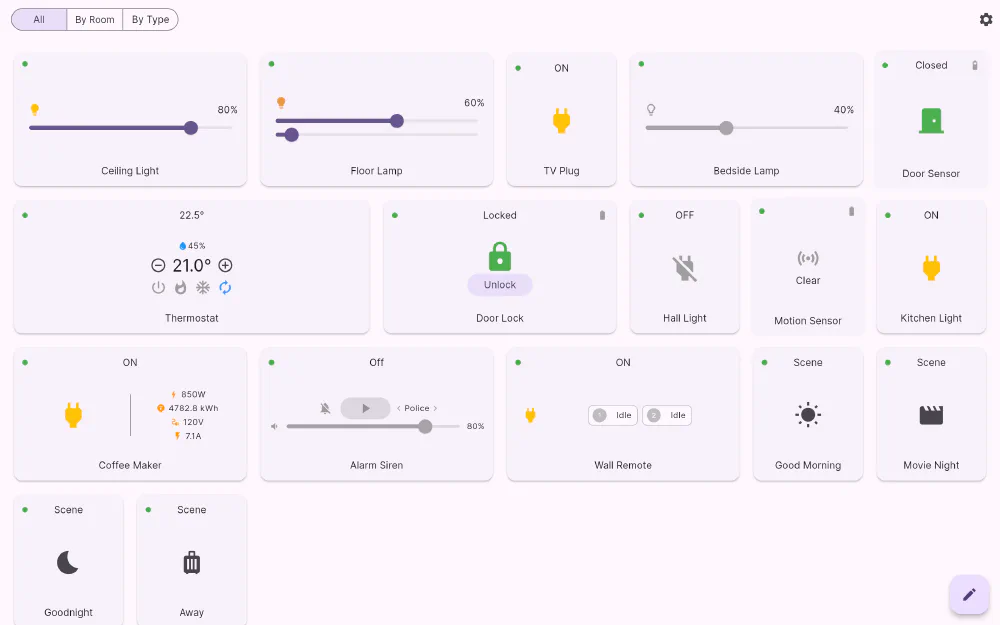
Most home apps start by asking which system you want to look at. Flick starts with your house. Open it and you get one page — the All view — with a tile for every device you have chosen to put there, no matter which hub or account it came from.
Everything is directly usable
Tiles are not shortcuts to detail screens. What you see on the dashboard is the control itself:
- Drag a dimmer’s slider and the light dims as you drag.
- Tap + or − on the thermostat and the setpoint moves.
- Tap Unlock on the lock tile and the lock turns.
- Tap a scene tile and the scene runs.
A plug that meters power shows its watts, kilowatt-hours, volts and amps right on the tile. A door sensor shows Closed and its battery level. A motion sensor shows Clear or Motion. Nothing is more than one tap deep.
Three ways to look at the same home
Along the top there are three views, and they all show the same devices:
| View | What it does |
|---|---|
| All | Your custom layout — the tiles you picked, where you put them. |
| By Room | Sections per room, in reading order, with anything unassigned grouped at the end. |
| By Type | Sections per kind of device: dimmers, colour lights, plugs, thermostats, locks, sensors, scenes. |
All is the one you arrange by hand. The other two are generated for you, so a device you add to a hub shows up there immediately without any tidying up.
Big screens get more, not bigger
The grid measures the window rather than guessing from the device type, so the same layout logic fills a phone, a tablet in either orientation, and a desktop window you resize while using it. On a wide screen you get more tiles per row — not the same three tiles stretched out.
Pull down anywhere on the dashboard to refresh, and Flick re-reads every connected hub at once.
Get Flick
Free to download. Bring your own hub — Flick talks to the equipment you already own.