Scenes
Scenes that confirm they ran
Build a scene across devices from different hubs, run it from a tile, and see per-device confirmation instead of hoping.
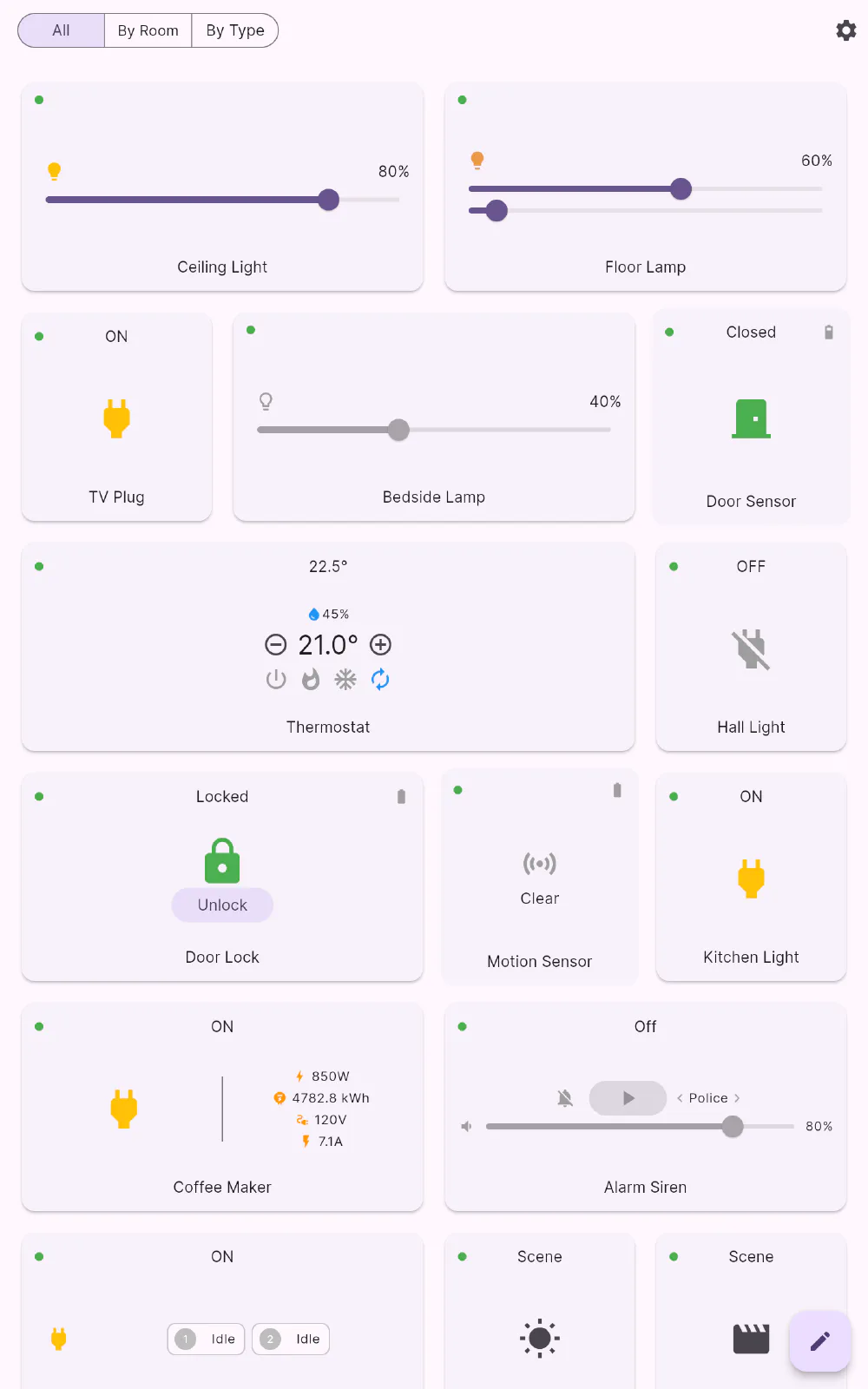
Hub scenes are useful, but they stop at the edge of the hub. Flick’s own scenes start from your house instead: any device, from any connection, in one scene.
Building one
A scene is a list of devices, and for each device the properties you want set:
- on or off
- brightness
- colour — hue and saturation, or colour temperature
- target temperature
- thermostat mode
- locked or unlocked
You can set more than one property per device, so “Movie Night” can dim the ceiling light to 15%, turn the floor lamp a deep amber, drop the thermostat by a degree and lock the front door — in one tap, across whatever hubs those four devices happen to belong to.
Give the scene a name and an icon, and it becomes a tile you can place on the dashboard like any other device.
What happens when you run it
This is the part most apps skip. Sending commands is easy; knowing they landed is not. When a Flick scene runs it:
- sends every desired value at once,
- then watches the live status stream for confirmation,
- re-sends anything that hasn’t confirmed yet, at a steady interval,
- and stops when everything is confirmed — or when the scene’s timeout expires.
A radio-based bulb that missed the first command usually catches the second, and you never find out an hour later that half the room stayed lit.
Honest results
Every scene run reports per-property outcomes, and the scene tile shows progress while it works. A property can come back as confirmed, timed out, from a device that isn’t there any more, or unsupported if a device changed underneath the scene. That means a scene that half-worked says so, naming the device that didn’t respond, instead of flashing a tick and leaving you to notice the lamp.
Scenes are managed from Settings → Local scenes, where you can add, edit, run and remove them. Scenes your hub provides are still available too: they appear as their own tiles, and Flick treats them like any other device.
Get Flick
Free to download. Bring your own hub — Flick talks to the equipment you already own.