
Pods
A live pod list with phase facets and metrics-server usage, and a detail page with charts, conditions and the pod’s own events.
The list
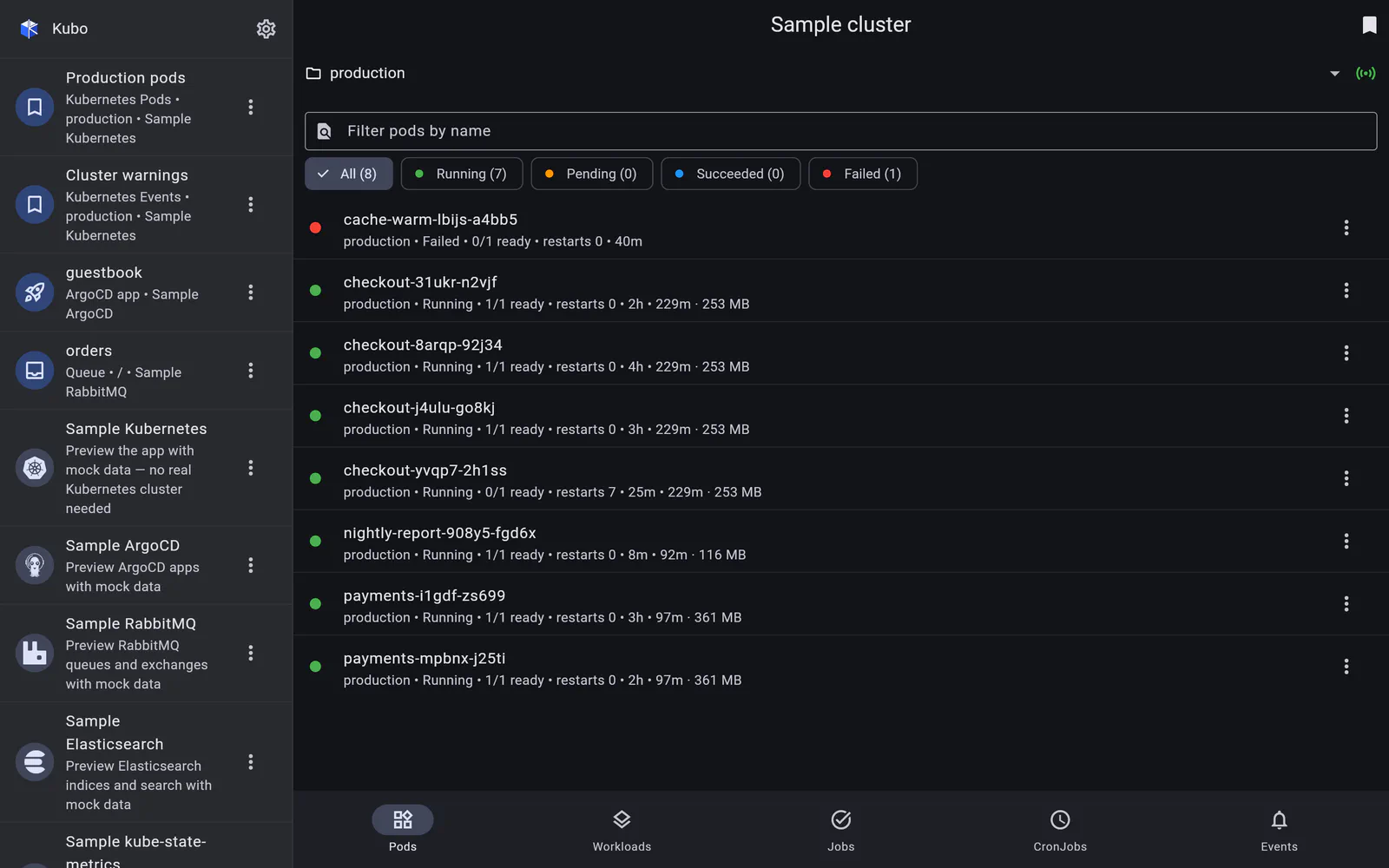
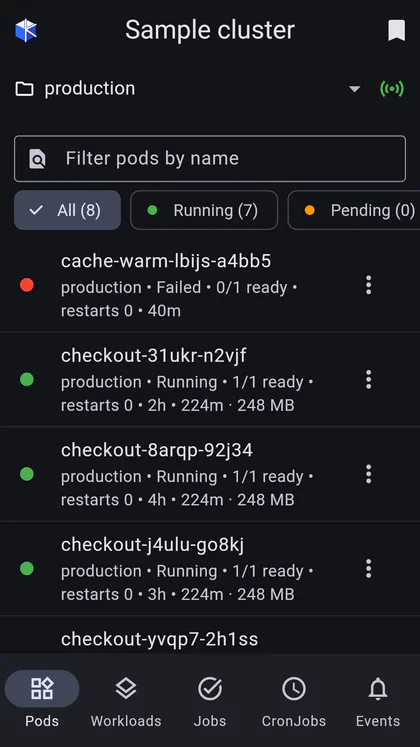
The pod list is scoped by the namespace bar and filtered by phase facet chips — Running, Pending, Succeeded, Failed — each carrying a count. That count is the point: a cluster with one bad pod says so before you scroll, and tapping Failed (1) is faster than typing a field selector.
Each row shows the pod’s name, namespace, phase, ready containers, restart count and age, plus live CPU and memory when metrics-server is installed. A free-text filter narrows by name.
Rows update in place over the watch API — a pod that goes Pending → Running moves
between facets without a refresh, and one that is deleted disappears.
The row menu deletes the pod (with a confirm), streams its logs, opens a terminal in a container, or shows its YAML.
The detail page
Tapping a row opens the pod:
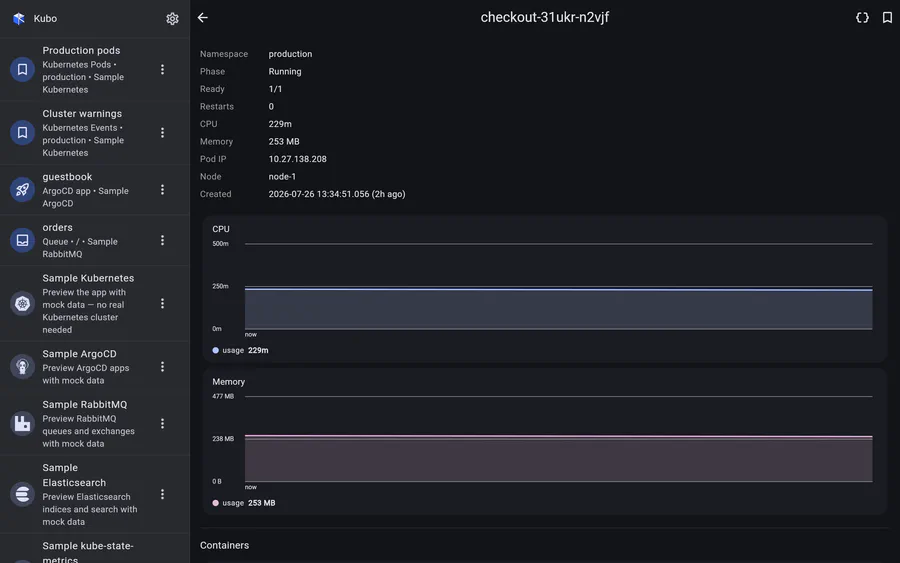
- containers, each with image, state, restart count and — with metrics-server — its own CPU and memory;
- conditions and the pod’s scheduling status;
- live CPU and memory charts;
- the pod’s Kubernetes events, newest first, fetched with a field selector on the
involved object — so the
Scheduled → Pulled → Created → Startedtrail, or theBackOffthat broke it, sits directly under the container list; - app-bar actions for logs, terminal, YAML and delete.
Where the charts come from
The metrics API keeps no history — it answers “what is it using right now” and nothing else. So Kubo accumulates history itself: every successful poll folds a point into a session-lived store keyed on the active cluster. The chart therefore survives navigating to the list and back, fills in as polling proceeds (“collecting history…” until the second point lands), and resets when you switch clusters.
Usage is summed per workload too, by matching pod labels against the workload’s selector in memory — no extra API calls — so a Deployment row shows what its pods add up to.
Quantities are parsed and rendered the way kubectl top does: 250m, 128Mi,
12345678n all become something readable on a phone.
Deleting
Delete is a confirm dialog, and it is the only destructive pod action — there is no edit, no patch-by-hand, no YAML editing. If a pod needs replacing, deleting it and letting its controller recreate it is the operation you actually want at 3am.
Screens
Back to Kubernetes.