Command palette & assistant
Ctrl+K to jump to any page, connection or workload — and an optional AI assistant that can read your systems and act only with your tap.
The command palette
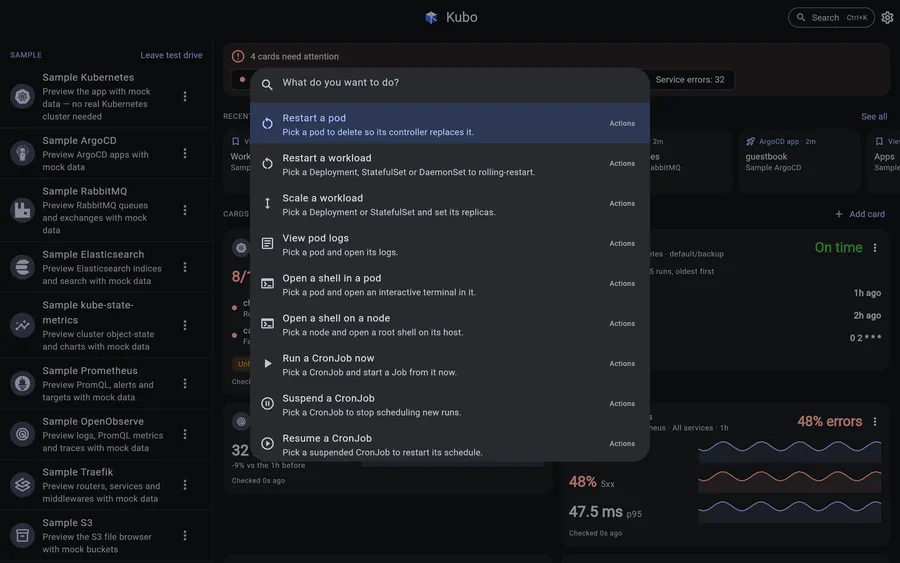
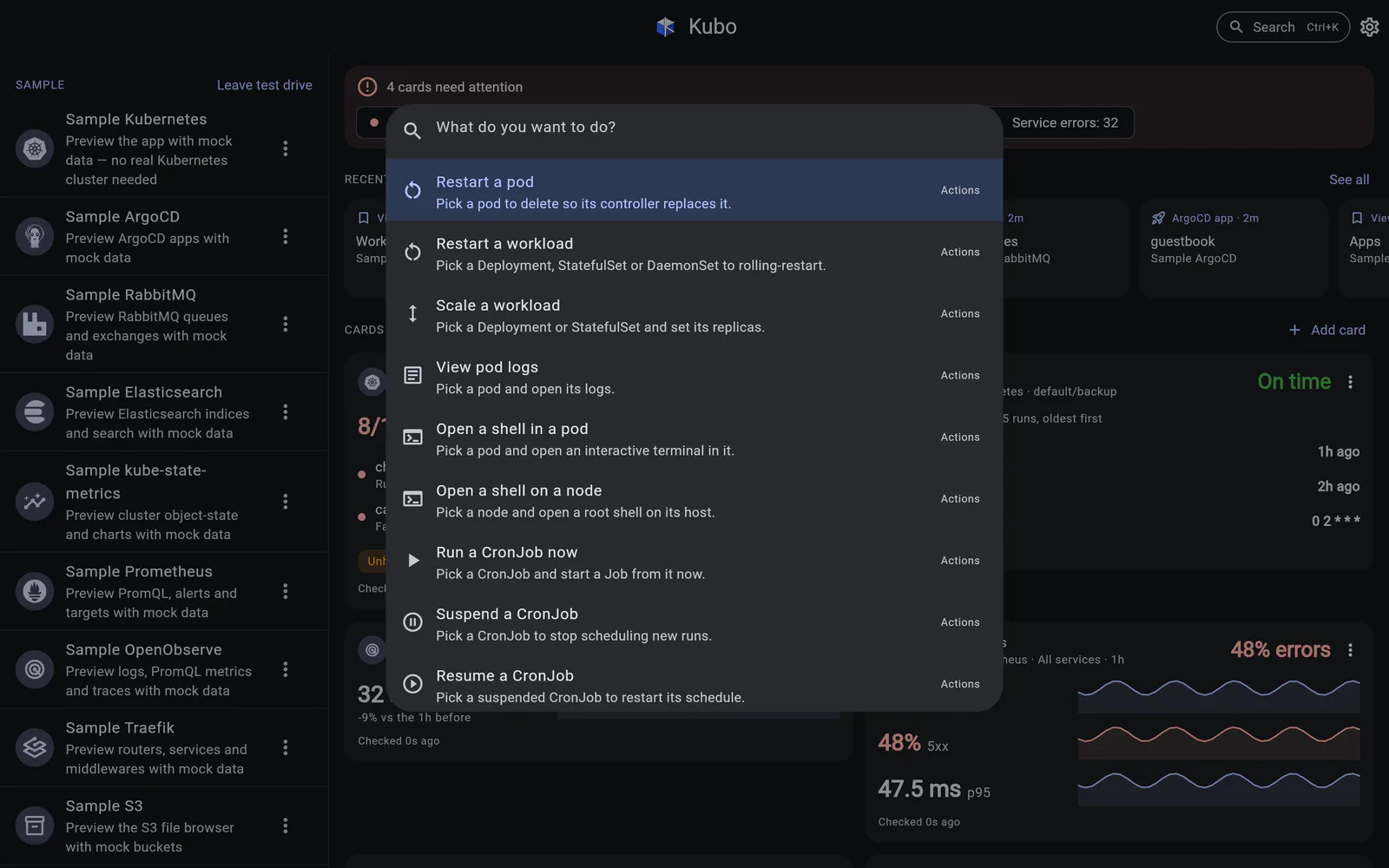
Ctrl+K (Cmd+K on a Mac) on any page — or the search button on a phone — opens one box that reaches everything:
- every page of every connection you have, and every bookmark;
- every workload and service by name, from whichever provider knows it;
- actions: restart a pod or workload, scale a deployment, run or suspend a CronJob, sync or refresh an ArgoCD app, purge a RabbitMQ queue, open a shell in a pod or on a node, open an SSH host.
Actions are pick and confirm: choosing one opens a searchable list of what it can apply to, and choosing an item is the confirmation, styled as destructive when it is. Only providers you have connected get actions; the others offer “Add …” instead.
On a desktop, Ctrl+Shift+N (Cmd+N on a Mac) opens a second window.
The AI assistant
The assistant is optional and off until you set it up — with an on-device model where the platform has one (Apple Foundation Models, Android’s on-device AI, Windows AI), or a model provider of your choosing.
It can do what the palette can — open any page, filtered the way you ask (“show me warnings in production”) — and it can read live data from the connections you have: list pods, search logs, run a PromQL query, describe an ArgoCD app, find an entity. It cannot change anything on its own: every action it proposes opens the same pick-and-confirm dialog the palette uses, and nothing happens until you tap.
Once open, the conversation stays: on a wide screen it docks beside every page, so the pages it opens appear next to the chat.
Screens