
Browsing buckets
Folders via common prefixes, a breadcrumb bar that goes up a level, sort and filter, and an image grid where a folder has pictures.
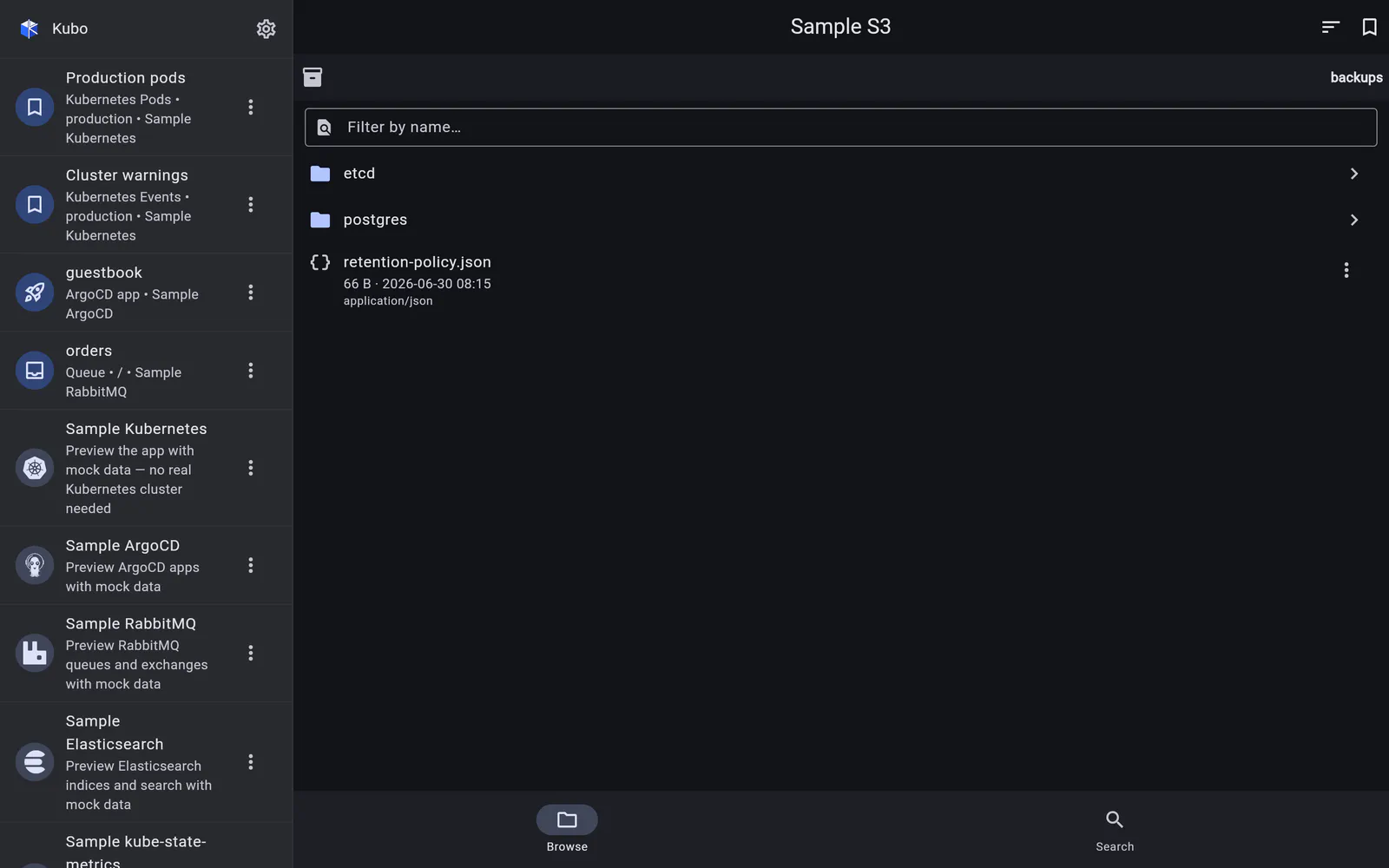
Browsing starts at the bucket list — or straight in the connection’s pinned default
bucket, if you set one. From there, folders come from ListObjectsV2 with a / delimiter,
so what you walk is the same prefix hierarchy the AWS console shows.
Getting around
- A tappable breadcrumb bar shows the path, and its leading button goes up one level — to the parent prefix, or back to the bucket list at the root.
- A client-side name filter narrows the current folder.
- A sort menu orders by name, newest, largest and so on.
- Infinite scroll pages through continuation tokens as you go.
Rows that tell you what a thing is
Each row carries a content-type-aware icon — bucket, folder, or a per-kind file glyph —
classified from the extension (and MIME type where known). Files also show a best-effort
content type guessed from the extension, because a listing response carries no
Content-Type at all: that only arrives with a HEAD, which is what the
object page does.
The icon vocabulary is part of the app’s theme, so a skin can swap the entire file-icon language rather than being stuck with one set.
Image grid
For image-heavy folders there is an optional gallery toggle — shown only when the folder actually contains images — that lays the folder out as thumbnail tiles, fetching the images themselves (with a cap on how many are loaded at once). Folders and other files stay as icon tiles.
Bookmarks
A browse view is bookmarkable with its scope — bucket/prefix/ — plus the name filter. The
bucket and prefix are stored as one string, which is unambiguous because bucket names cannot
contain a /.
Back to S3 & object storage.