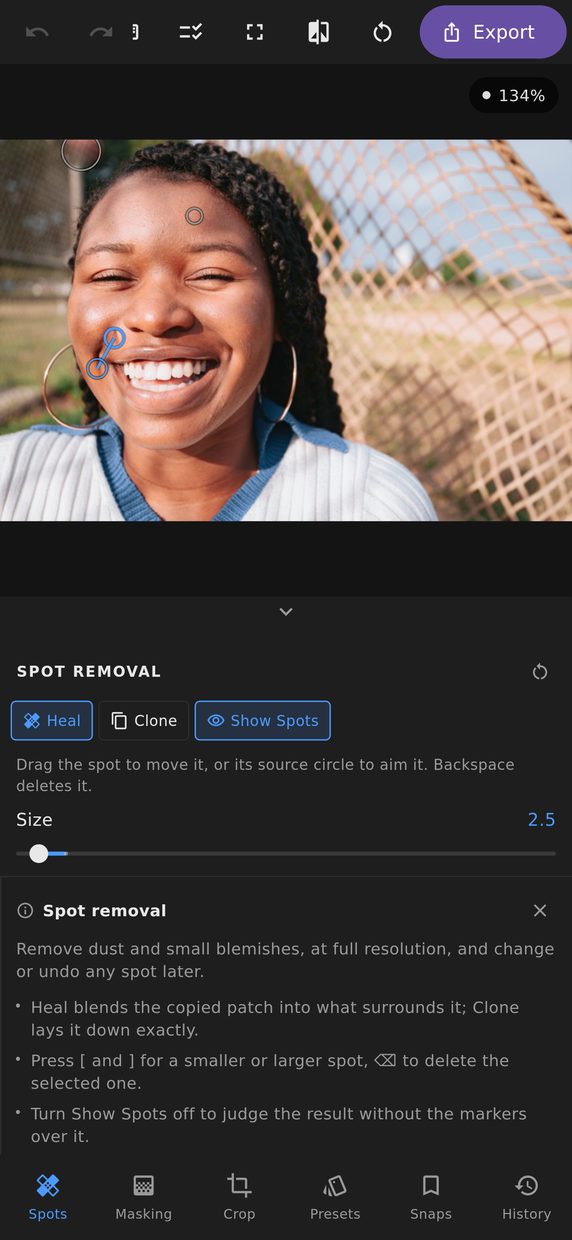
Sensor dust, a stray hair, a blemish that will be gone next week, a ball caught at the edge of the frame. These are the small things that stop a photograph being finished, and they should take a tap each.
Tap, and it is gone
Tap the spot. The editor searches the frame for material that matches what surrounds it, copies a patch from there, and corrects the patch to the tone of the place it lands, so it disappears rather than sitting there as a slightly-wrong disc.
Every spot keeps a marker, and the selected one is joined by a line to where its patch came from. If the search picked badly — a patch of sky with a branch in it — drag the source circle somewhere better. Drag a spot to move it, and its source moves with it, because the offset was chosen for a reason. Or skip the search altogether: drag from a blemish to aim the source yourself, for the picture repetitive enough that only you know which way to go.
[ and ] make the spot smaller or larger, and ⌫ deletes the selected one.
Heal or clone
Heal blends the copied patch into what surrounds it, which is what you want almost every time: skin, sky, a wall, anything with a gradient across it.
Clone lays the patch down exactly, with no blending at all. It is the answer where healing would smear — a spot right against a hard edge, or a pattern that has to line up.
Turn Show Spots off to judge the result without the markers drawn over it.
Still a recipe
A spot is part of your edit like any slider, not a change to your pixels. That buys three things.
- It is applied at full resolution. The export heals the original, not an enlargement of the preview.
- It survives a re-crop. Spots are stored against the photograph rather than the frame, so straightening or cropping afterwards carries every one of them along with it.
- It is editable for ever. Come back later and each spot is still a marker you can move, resize or delete.
What a spot does not do is travel. It is aimed at this photograph, so when you copy settings to another one the Spot removal group is disabled, with the reason written underneath, rather than pasting circles onto a picture with nothing to remove in those places.
When a spot is not enough
A spot is a circle. A power line across a sky, a person at the edge of a beach, or a patch that needs filling from nothing are not circles, and the panel says so: Open in Pixel Studio takes you to the retouching workspace, with its healing brush, clone stamp and content-aware fill.