The request builder
Method, path, headers and body — with the resolved URL previewed live as you type, headers you can switch off without deleting, and a JSON body editor that validates and formats.
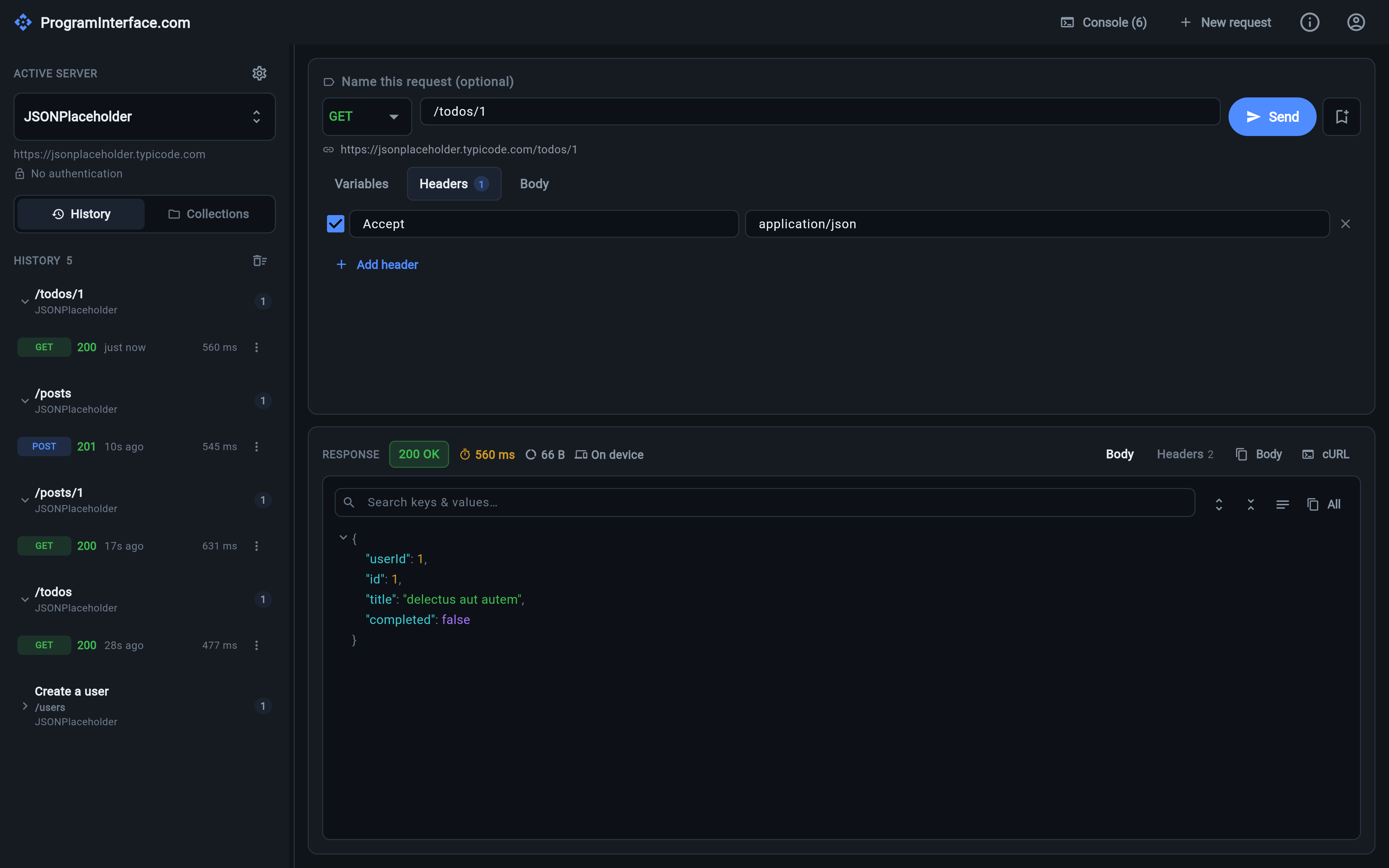
The desktop layout: request on top, response below, servers and history down the left.
The editor is deliberately small. There’s a method, a path, headers, a body, and a Send button — and everything you might otherwise have to hold in your head is shown on screen instead.
Path, and the resolved URL
You type a path, not a URL: /todos/1, not
https://jsonplaceholder.typicode.com/todos/1. The base URL comes from the
active server, which is what makes the same request
portable between environments.
Directly under the path field, the app shows the resolved URL — base plus path, with variables already substituted. It updates as you type. Nothing about which host you’re about to hit, or how your placeholders resolved, is left to inference.
Methods
GET, POST, PUT, PATCH, DELETE, HEAD and OPTIONS, each with its own
colour throughout the app — the method chip in the picker, in history rows, in
collection entries and in the console all use the same palette, so a list of
past attempts is scannable without reading a word.
Headers
Headers are rows of key and value, with a checkbox on each row. Unchecking one disables it without losing it — the fast way to answer “does it still fail without this header?” and then put it straight back. The Headers tab carries a badge with the number of active headers, so a disabled row is never silently forgotten.
Two headers are supplied automatically when you haven’t set them yourself:
Content-Type, from the body type you picked, andAuthorization, from the server’s auth provider.
Set either one explicitly and yours is used instead.
Body
The body editor has four types:
- None — no body is sent at all.
- JSON — validated live, with an error shown as you type and a one-click
Format button to pretty-print what you’ve got. Sent as
application/json. - Text — sent verbatim.
- Form — form-encoded fields.
The JSON validation is the useful part: a trailing comma or an unquoted key is caught in the editor rather than coming back as a 400 you then have to interpret.
Naming a request
Above the method row is an optional name. It’s what a saved request is
listed as in a collection and what a group is labelled with
in history — so GET /users/{userId} can read as
“Get a user by id” everywhere it appears. Leave it blank and everything falls
back to the path.
Reading the response
JSON comes back as a collapsible tree rather than a wall of text: expand and collapse nodes, expand or collapse everything at once, and filter with a search box that matches both keys and values — useful when the interesting field is forty lines into an array. The raw body and a ready-made cURL command are one click away, and the header line carries status, elapsed time, size and which executor ran it.
Sending
Send fires the request; ⌘/Ctrl + Enter does the same from the keyboard. On phones, sending automatically reveals the Response tab, so the result is on screen without a second tap.
Transport failures — DNS, connection refused, TLS — don’t throw or show a crash dialog. They come back through the same path as an HTTP response and are rendered in the response panel like any other outcome, and recorded in history and the console the same way. One code path, one place to look.