Boards and sprints
A board shows some of a project’s tasks as cards, one column per status. A project can have as many boards as it needs.
Columns are statuses
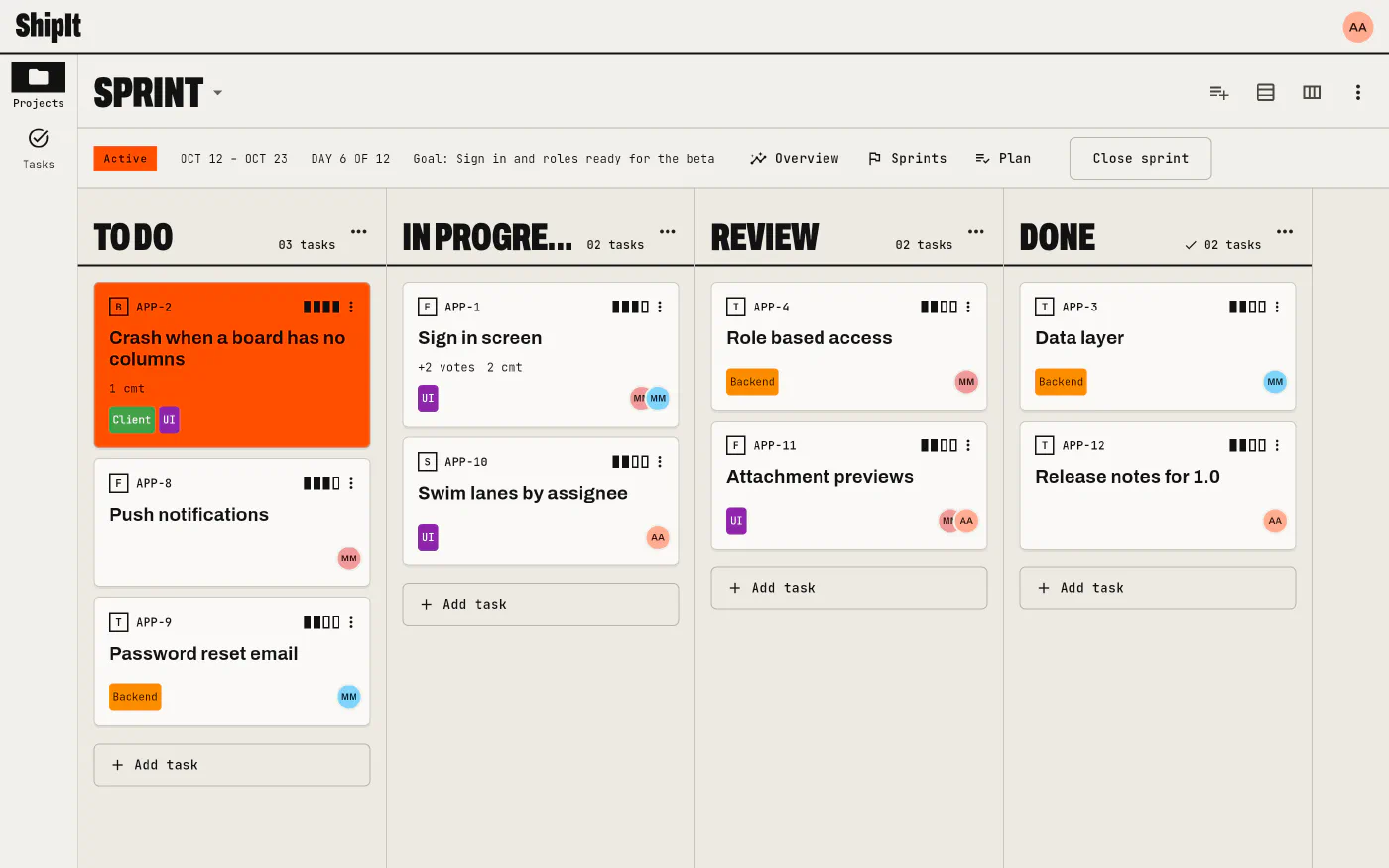
Each column of a board is one of the project’s statuses, and you choose which statuses a board shows and in what order (Add column, move left or right). Drag a card to another column to change its status. A card keeps its place within its status on every board that shows it. Columns can have a limit for work in progress.
Recent boards
Home has a Recent boards card with the last five boards you opened, newest first, each with its project. Tap one to go straight to it. Until you’ve opened five, the rest of the list is the newest boards you can see. The list is kept on each device, so a phone and a laptop each remember their own.
Which tasks are on a board
A board holds the tasks added to it. Add tasks searches the project’s tasks; a task can be on several boards at once (triaged on one, planned for the sprint on another) or on none. Remove from board in a card’s ⋮ menu takes it off that board only. New tasks created from a column land on that board.
Swim lanes
Swim lanes split the board into rows. Each board picks its own: none, by assignee, by priority, by type, or by custom lanes you name yourself (Web, Mobile, Q3). Custom lanes belong to the board, so the same task can be in Web on one board and in Q3 on another. Dragging a card to another lane changes what the lane stands for: its assignee, priority, type or custom lane.
Select several cards
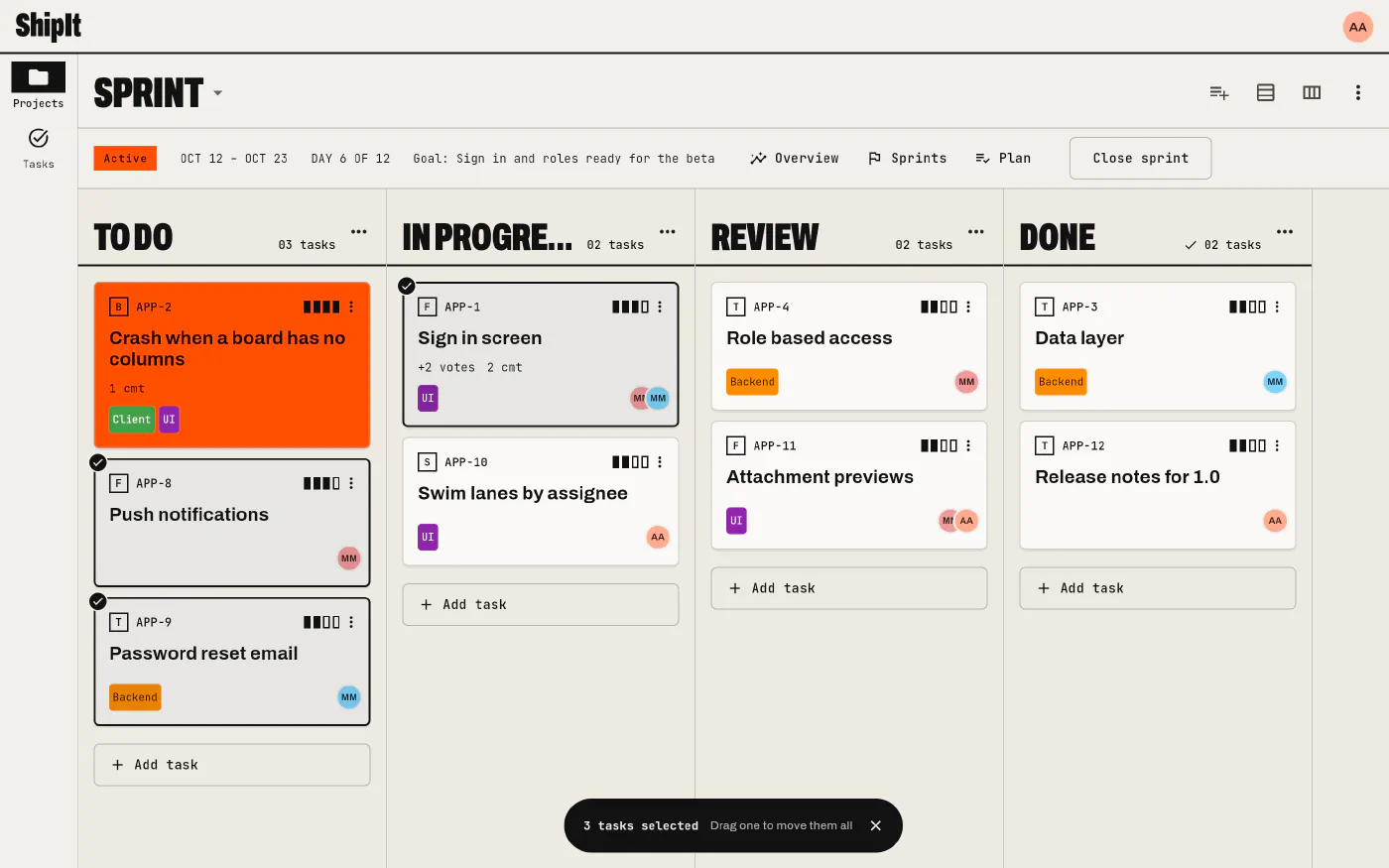
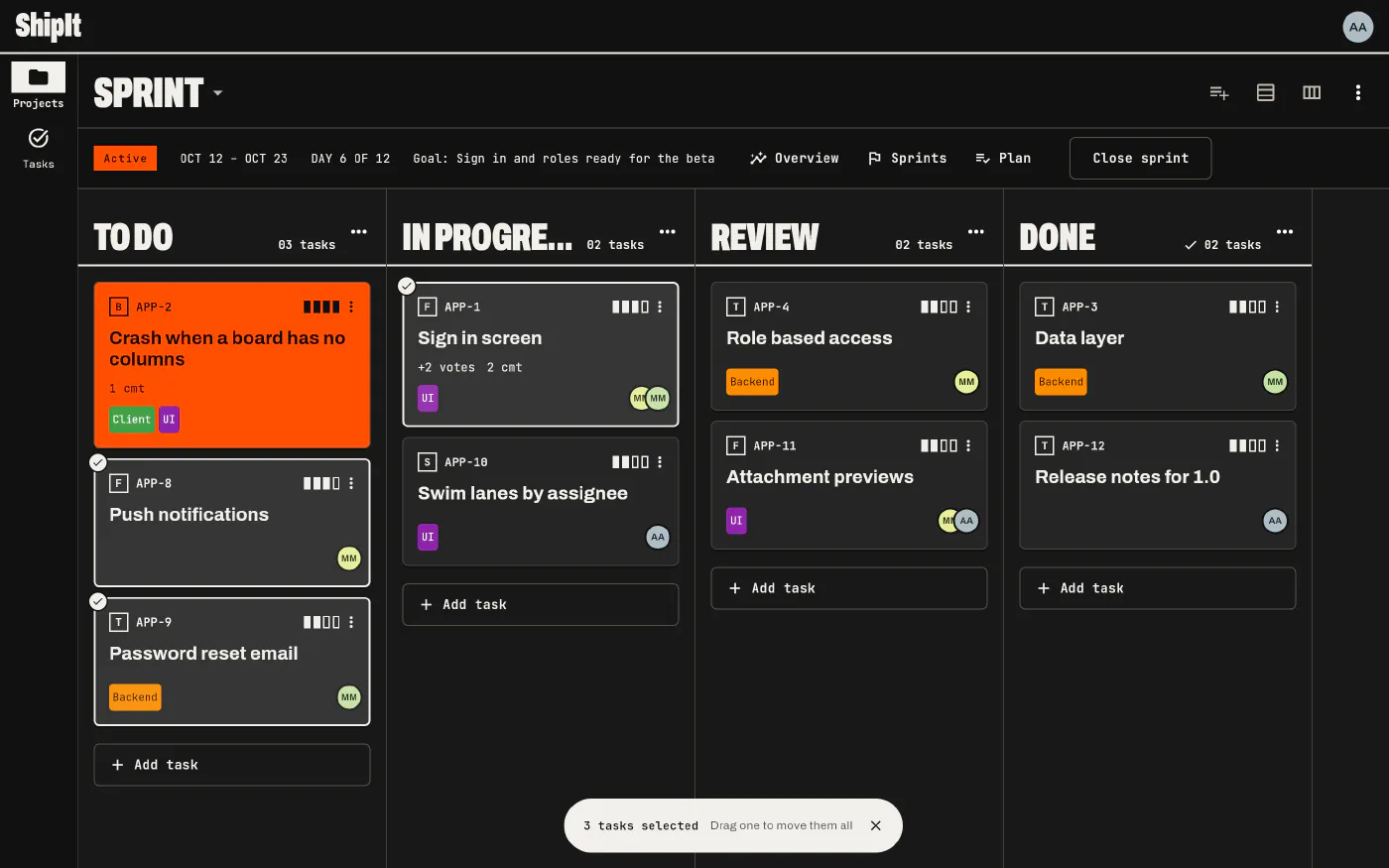
Long press a card and let go without moving to start a selection (with a mouse, hold the button, or Ctrl, Cmd or Shift and click). Then tap or click other cards to add them. Drag any selected card and they all move together, landing from top to bottom in the order you selected them. The bar at the bottom says how many are selected; × clears the selection.
Cards
A card shows the task’s key, type, priority, title, votes, comment count, tags and assignees. Tap it to open the task in a dialog; its ⋮ menu has the quick actions (open the task page, edit, assign to me, assign…, remove from board, delete), each shown only if you’re allowed to.
Sprints
A sprint is a board with dates and a goal (tick With dates and a goal when you create the board). The project’s Sprints page lists them as planned, active and closed; several can run at once.
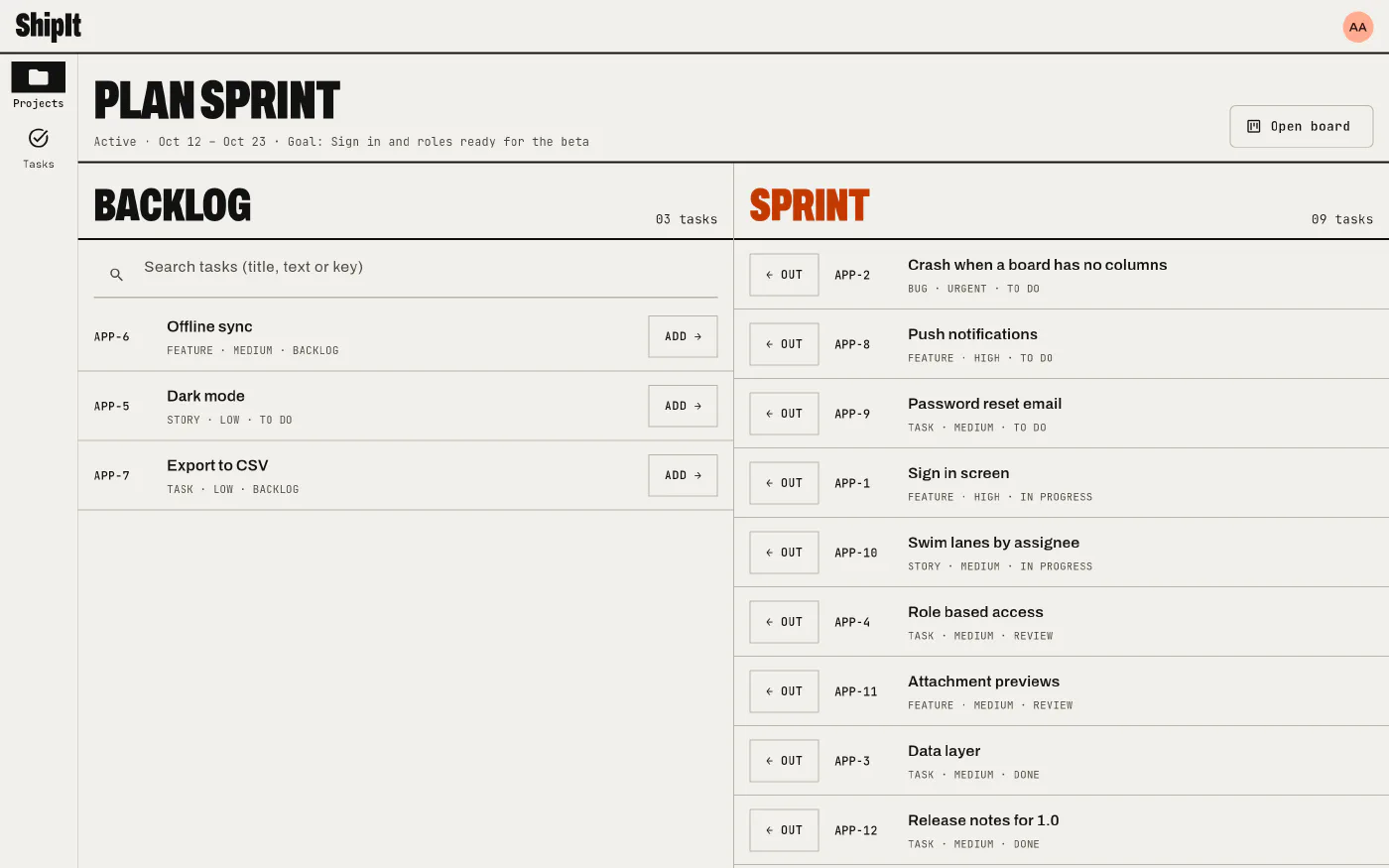
- Plan picks the sprint’s tasks from the project’s backlog and orders them.
- Start sprint makes it active. The bar under the title shows its dates, the day you’re on and its goal.
- Overview shows where the work stands, by status and by person.
- Close sprint asks where the unfinished tasks go: to a planned sprint or back to the backlog. The tasks stay on the closed sprint too, so its history is kept.