
Search actions and Ask AI
Press ⌘K on a Mac or iPad keyboard, Ctrl+K elsewhere, or the Search button at the top (a search icon on phones), and type what you want to do.
Search actions
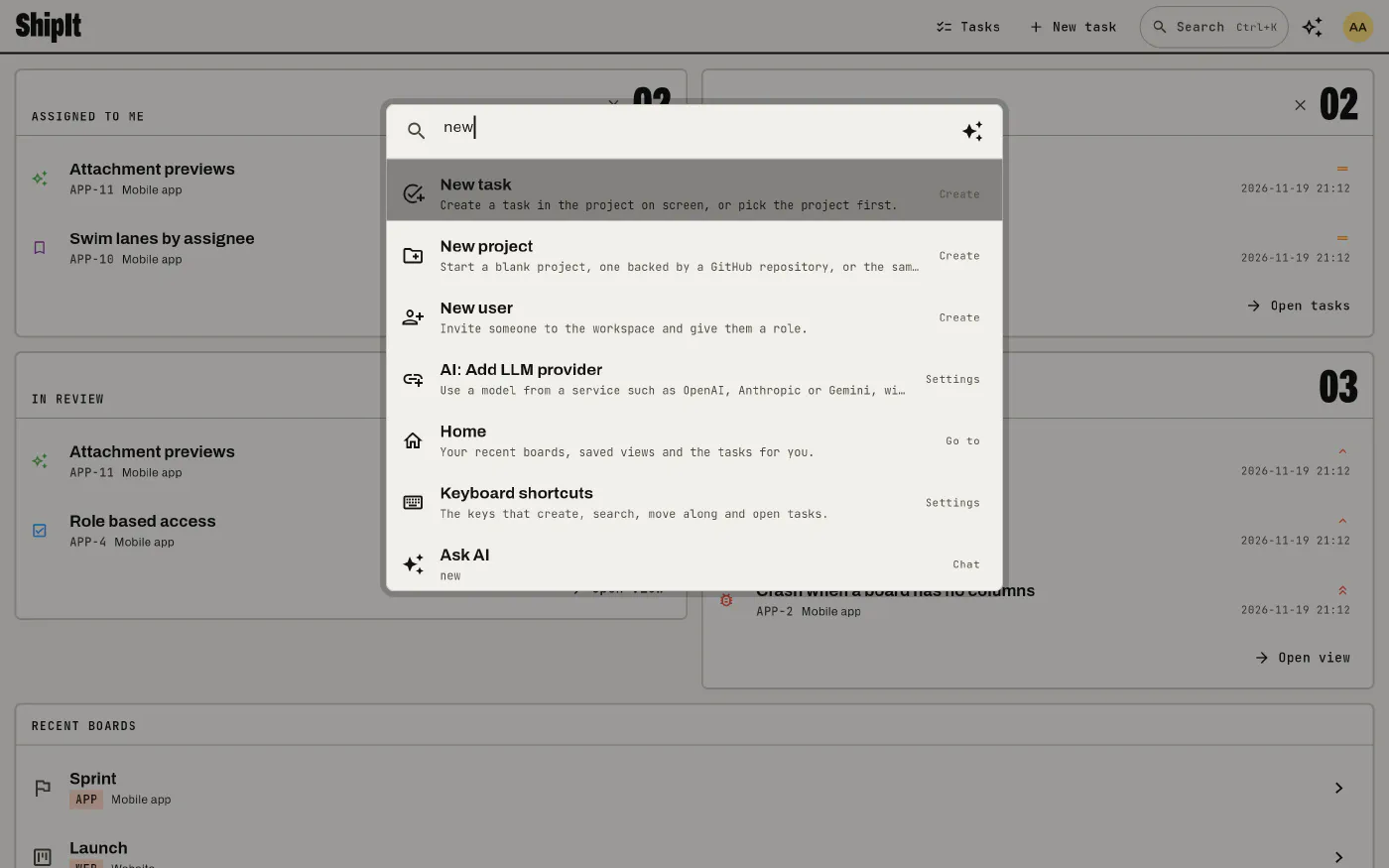
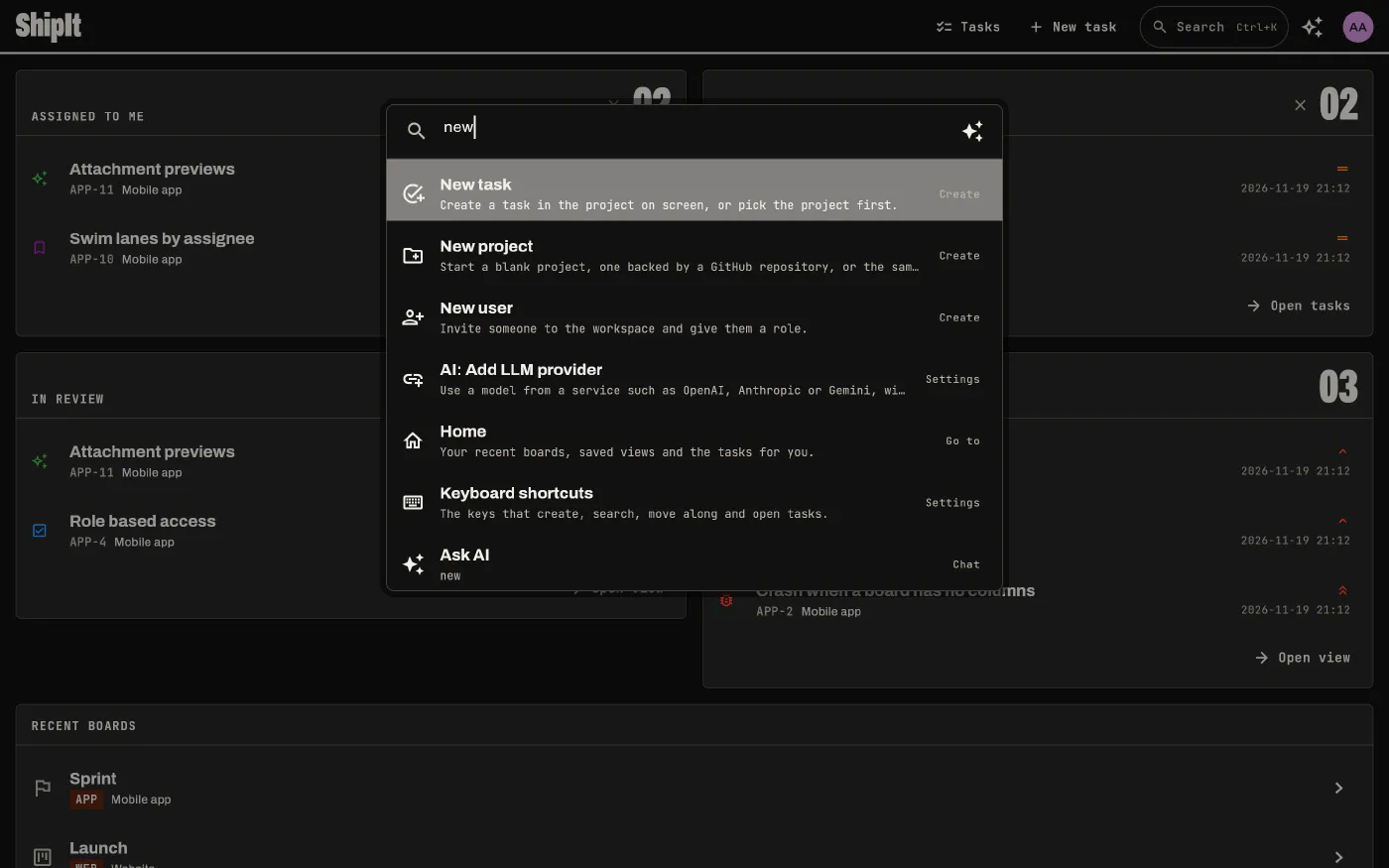
Type in your own words: “new task”, “create a ticket”, “my tasks”, “invite someone”, “dark mode”. Small typos and other words for the same thing (“ticket” for task, “label” for tag) work too. Arrow keys move through the list, Enter runs the highlighted action and Esc closes it. On phones the list fills the screen.
| Kind | Actions |
|---|---|
| Create | New task (in the project on screen, or pick one), New project, New user |
| Tasks | My tasks, Tasks involving me |
| Go to | Tasks, Projects, Home, Users, Tags, Roles, Settings |
| Settings | Dark theme, Light theme, Use the device’s theme, About ShipIt, Sign out |
| Projects | every project you can see: type its name or key to open it |
| Boards | every board you can see: type its name, or its project’s, to open it |
You only see the actions your role allows.
Ask AI
The list ends with Ask AI on iPhone, iPad, Mac, Android, Windows and Linux. It opens a chat with what you typed, beside the screen on wide windows and over it on phones. The ✦ button at the top opens and closes the chat. It runs on the device, so nothing you type is sent anywhere. On the web Ask AI doesn’t appear yet.
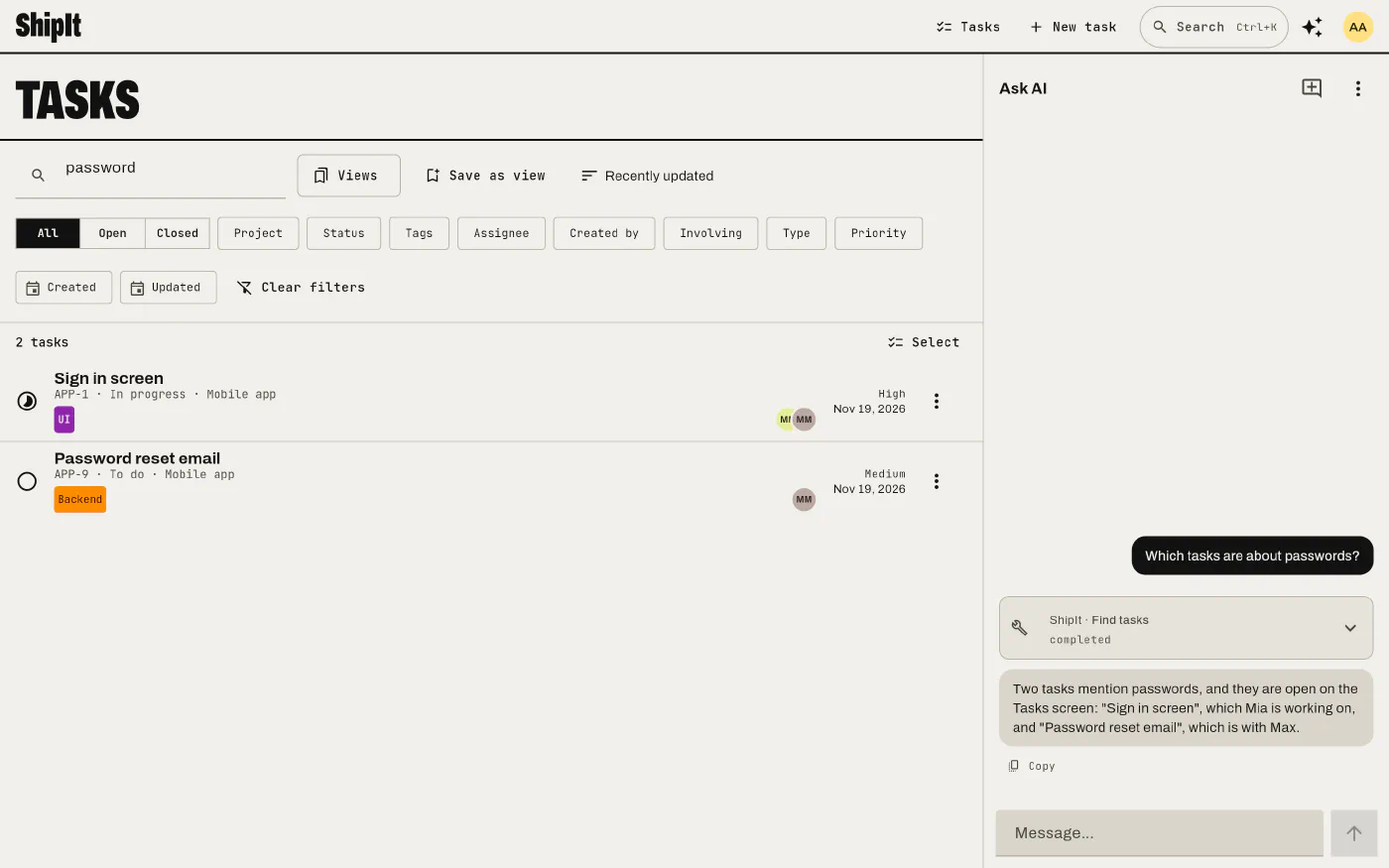
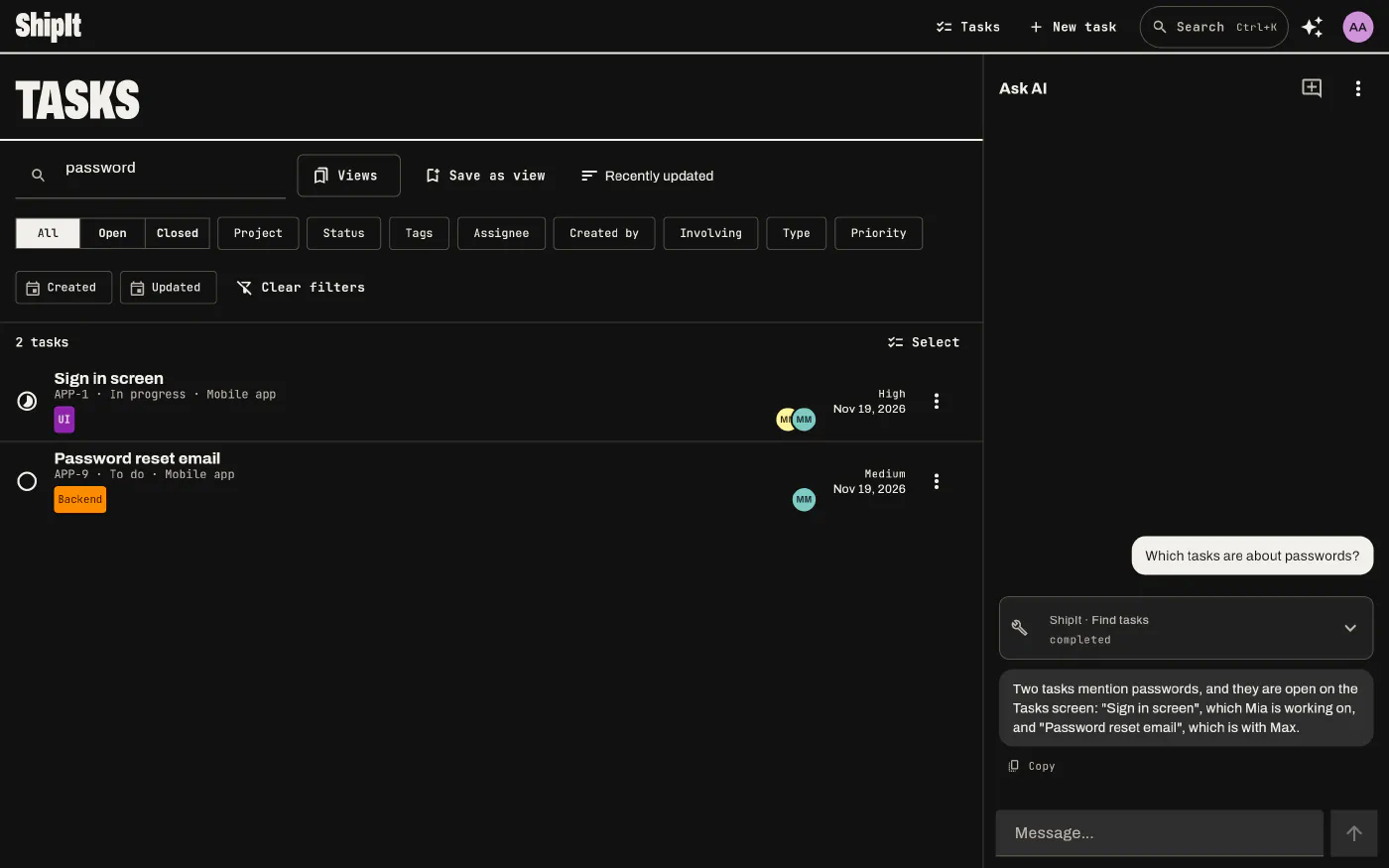
The assistant can act for you, within what your role allows:
- run any of the actions above (except signing out);
- create a task from what you describe (“a high priority bug in Website: the login button does nothing”). It opens the task form filled in, and nothing is saved until you check it and press Create;
- open a project by its name or key;
- search tasks the way the Tasks screen filters them: words, who it’s assigned to, who created it or anyone involved (“what’s assigned to Luiz?”, “open bugs I’m involved in”), project, status, tags, priority and type, showing them on the Tasks screen and telling you how many match and which;
- find projects, boards, people or tags by name, each with its own search so a person is never reported as a task, opening the project or board when only one matches;
- read a task, project or person to answer about it: a task’s status, assignees, description and latest comments (“what’s left on WEB-12?”), a project’s task counts and members, or someone’s open tasks.
Apple’s model does this out of the box. Where it’s missing or turned off, and on other devices, the device’s own model (Gemini Nano on supported Android phones, Windows AI on Copilot+ PCs) can only explain how to do things with the actions above, and some devices have none. There the chat shows Get a model that can, which lists small open models that run the actions, smallest first, each with its size, and downloads the one you pick (once). They run locally, so what you type stays on your device; only the download uses the network. Download a model in the chat’s ⋯ menu opens the same list any time, even when Apple’s model is on:
| Model | Size | Good for |
|---|---|---|
| Qwen3 1.7B | 977 MB | A good default: it runs actions and talks about them. |
| Qwen 2.5 1.5B | 1.6 GB | Better answers in prose. |
| Gemma 3 1B | 550 MB | Less reliable with actions, and needs a Hugging Face token. |
| Gemma 4 E2B | 2.4 GB | The best of them, for devices with room to spare. |
Android needs version 11 or later, and a Mac needs Apple silicon.
Downloaded models are shared with other apps that use the same model store, so a model is downloaded once. One another of these apps already downloaded shows in the list as On this device, from that app, ready to use with no download, and a model ShipIt downloads is there for them. Models on this device in the chat’s ⋯ menu lists them, deletes the ones you no longer want, and on Android, iPhone, iPad and Mac lets you pick any model file another app shares through the system’s file picker. On iPhone and iPad, ShipIt’s own models are in the Files app under On My iPhone › ShipIt, so other apps can pick them too.
Once there is more than one model, the chat shows a model picker in its header. The command palette has three AI entries:
- AI: Download model, where models can be downloaded;
- AI: Default model, once there is a choice: the model new chats start on, remembered on this device;
- AI: Add LLM provider, to go beyond the models on your device: OpenAI, Anthropic or Gemini, with your own API key. The key is kept on this device only, and what you ask, along with what the app shows the model, is sent to that service, which the chat says before you start.