
Your first project
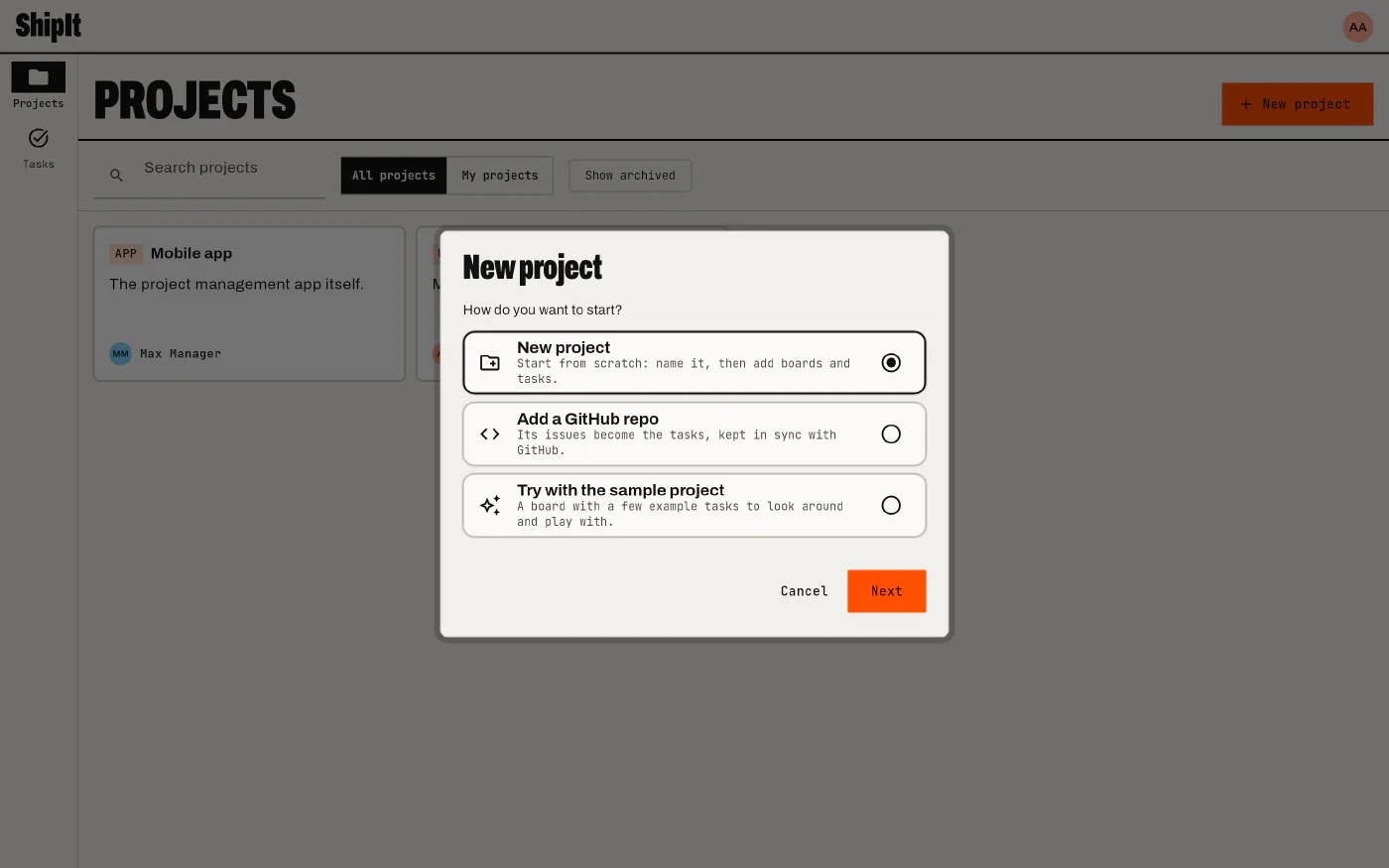
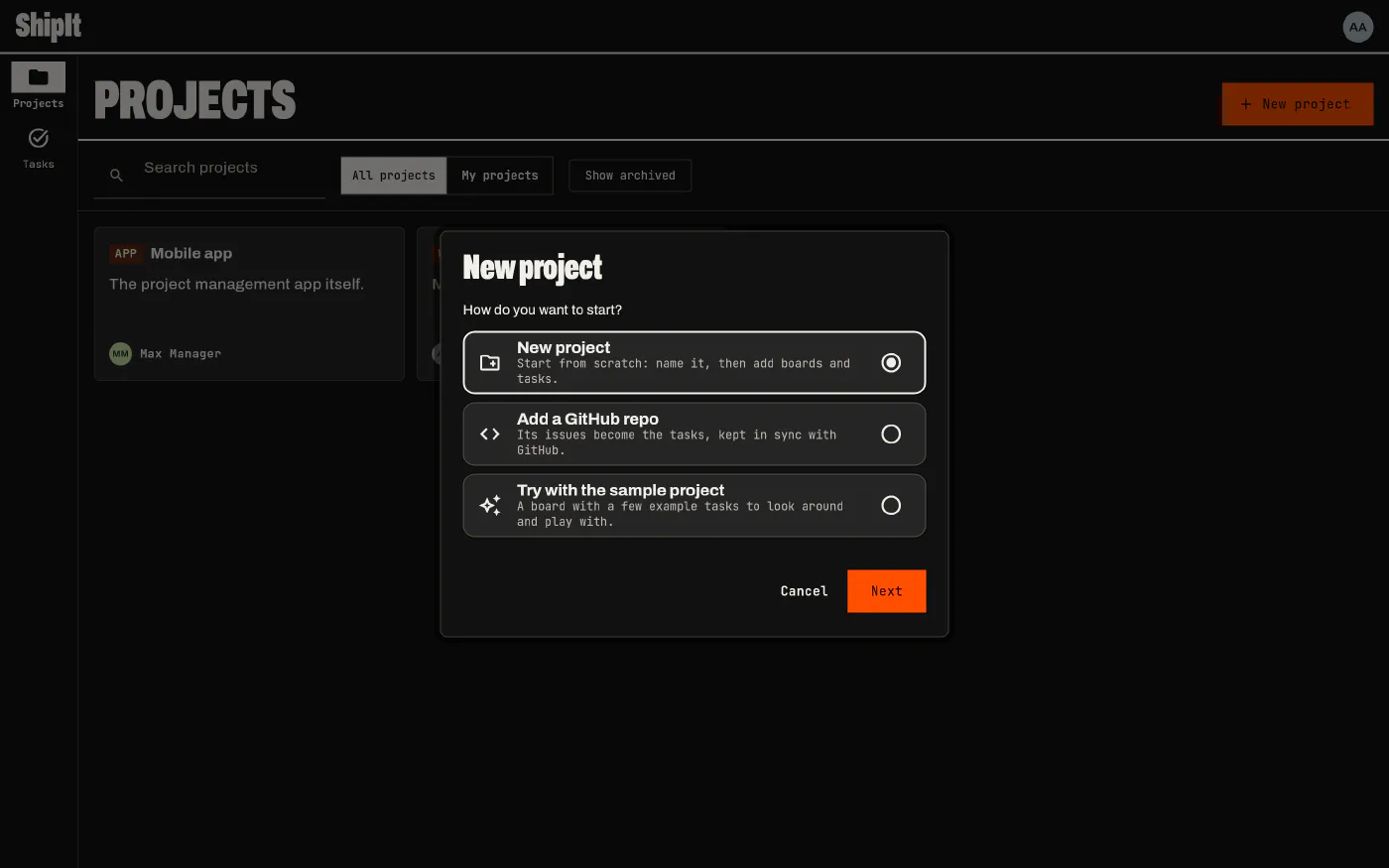
The New project button on the Projects screen (and the “Get your first project set up” panel on home) opens a short wizard with three ways to start.
New project
Start from scratch: give the project a name and a short key (like APP). The key prefixes every task’s number, so the first task of APP is APP-1. Then add boards and tasks. A new project starts with three statuses, To do, In progress and Done, which you can change on the project page.
Add a GitHub repo
Pick a repository and its issues become the project’s tasks, kept in sync with GitHub. The wizard helps you make a GitHub token (a link opens GitHub’s token page with the right settings filled in) and paste it. You can skip the token: the project then shows a read-only copy of the issues, and boards and votes still work. See GitHub-backed projects.
Try the sample project
Creates a project with five statuses, a Kanban board and a handful of example tasks, so you can look around and drag things before you set up real work.