Getting started
There are two ways in. Sign in to share a workspace with your team, or keep everything on this device.
Sign in to a workspace
A workspace holds your team’s people, projects, tags and roles. ShipIt opens on a sign-in screen; Sign in opens your browser to log in, then brings you back to the app. On the web the login takes over the tab and returns to ShipIt when you’re done. You stay signed in on that device until you sign out from the avatar menu at the top right (on the web, for as long as the tab is open; reloading keeps you signed in).
Workspaces are by invitation for now. When someone invites you, your first sign-in puts you in their workspace; the person who signs in first to a new workspace becomes its admin.
On this device only
Below the sign-in button, Use on this device only opens a workspace stored on the device, with no account and no server. It has every feature. The first launch asks for the first user (an admin), or loads the sample data, which has one person per role and two projects.
Add more people in Settings, then switch between them from the avatar at the top right to see the app as each of them, which is the quickest way to try the roles. With more than one person, ShipIt asks who is using it at launch.
Finding your way around
- The ShipIt logo at the top left always leads home.
- Projects and Tasks are the two sections: a rail on the left on wide screens, a bar at the bottom on phones. If you can only see one of them, home links to it instead.
- The avatar menu at the top right has Settings, About and Sign out.
- Pull down to refresh on phones and tablets; on other screens a refresh button sits in the top bar.
Home
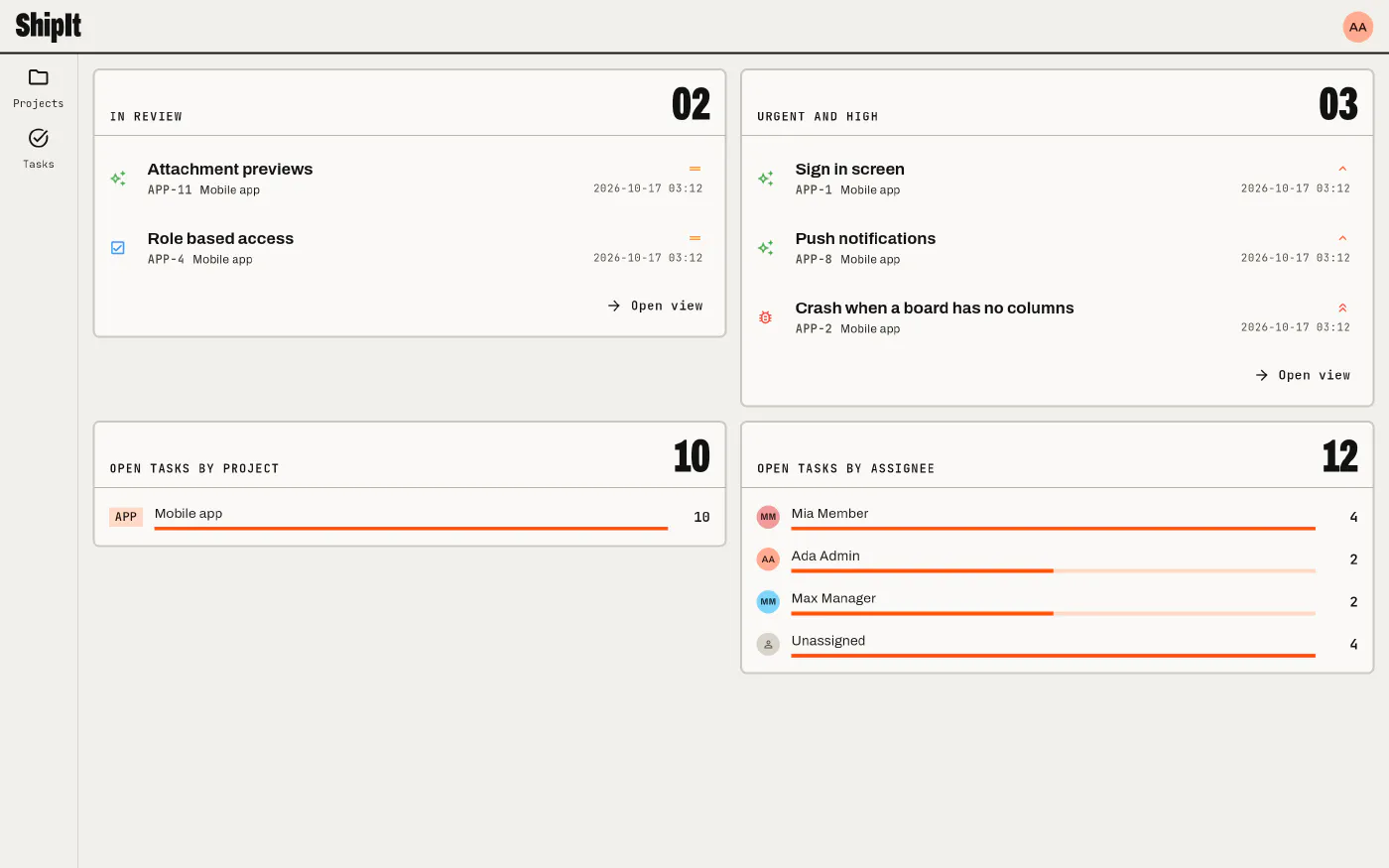
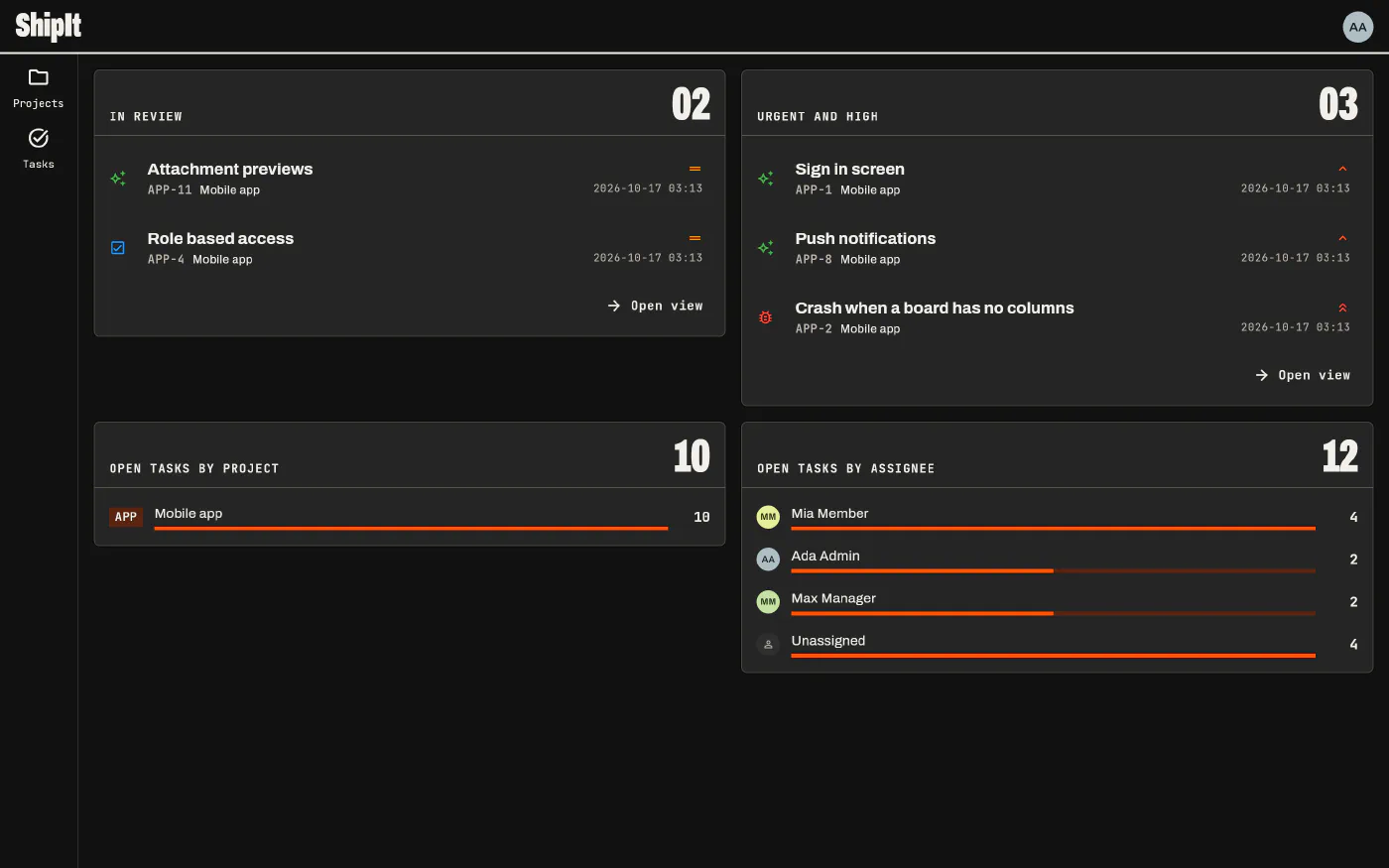
Home is where ShipIt opens. It shows your recent boards, the saved views you chose to keep there, each with its count and first tasks, and how many open tasks each project and each person has. Every row links to the matching tasks.
If you can’t see any project yet, home offers to set up your first one.