
Search and saved views
The Tasks screen searches the tasks of every project you can see. A filter you use often can be saved as a view and kept on home.
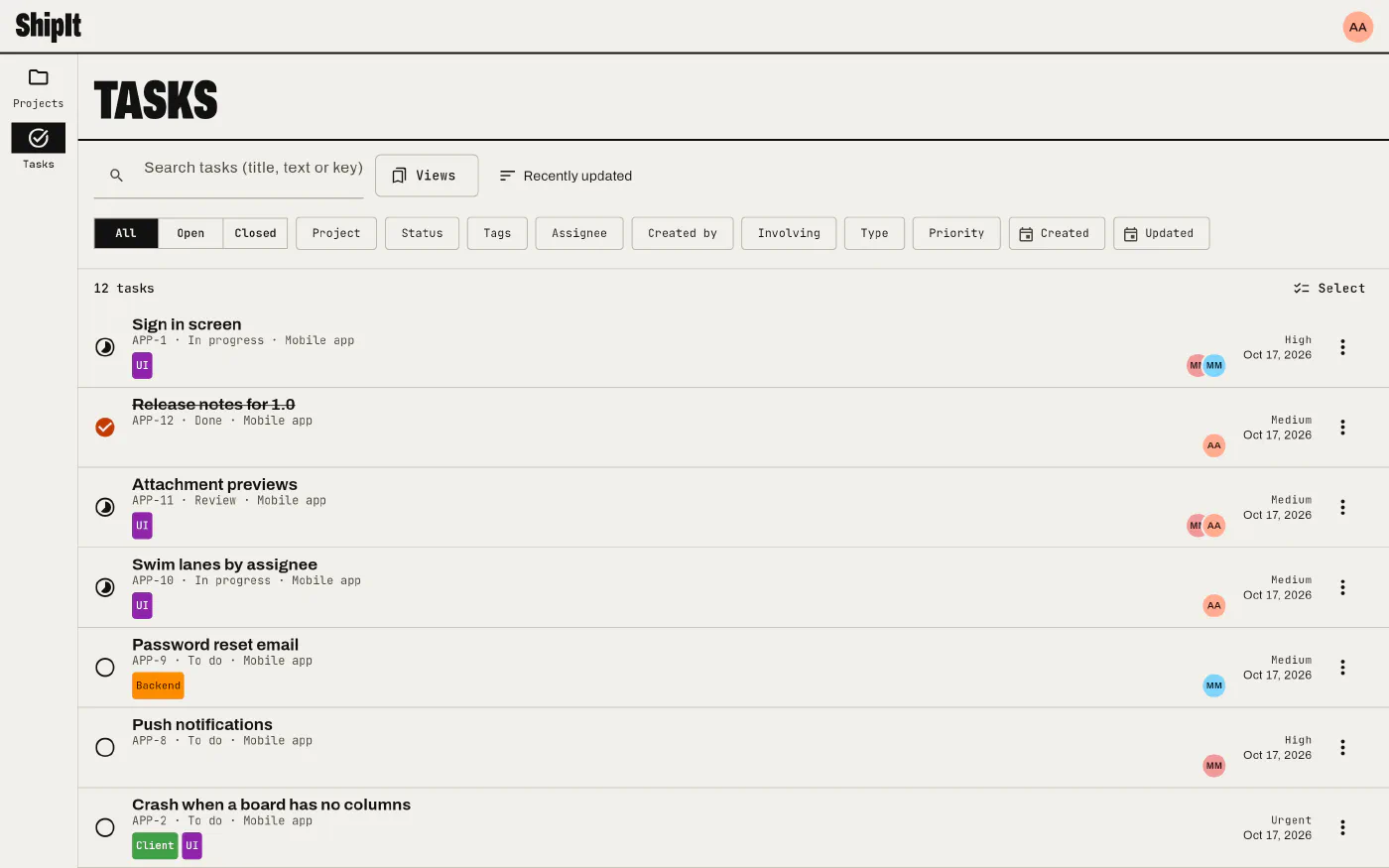
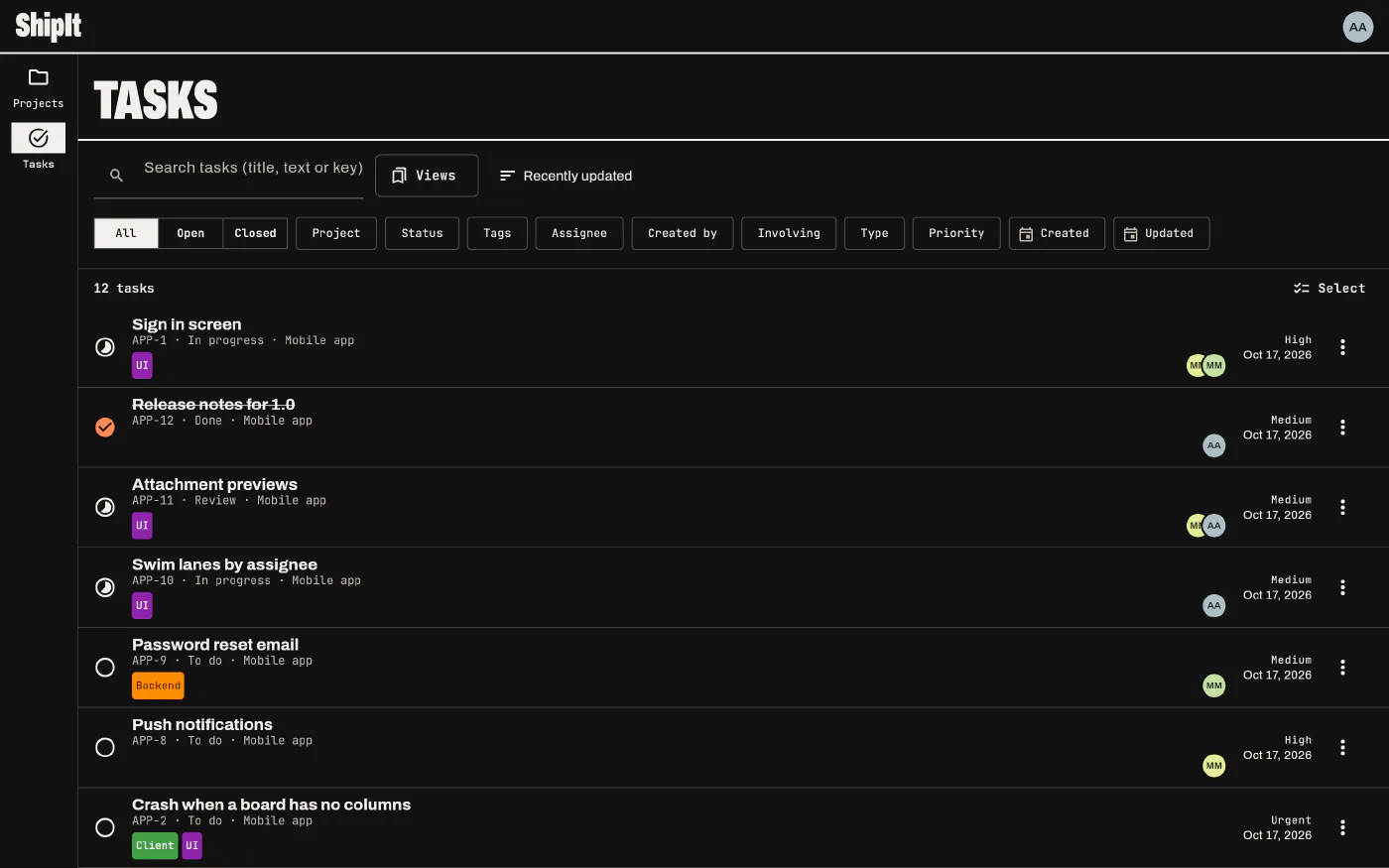
Search and filters
Type to search titles, descriptions and keys (APP-12). The filters narrow it down by project, status, open or closed, tag, assignee, creator, type, priority, and the dates a task was created or last updated. Involving me finds the tasks you created, are assigned to, commented on or were mentioned in. Sort by recently updated, newest, oldest, priority or title. On phones the filters sit behind a Filters button.
Select several tasks
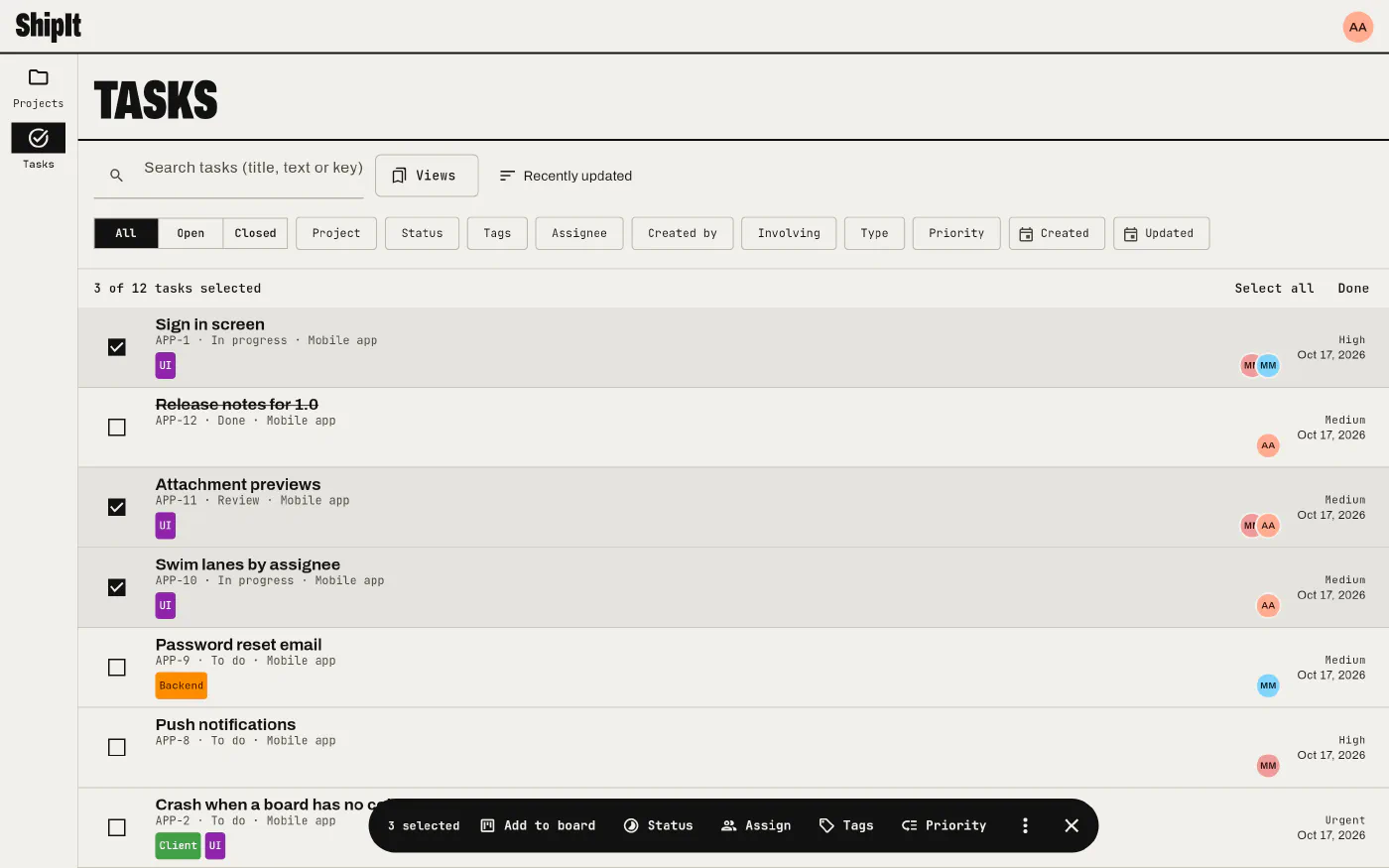
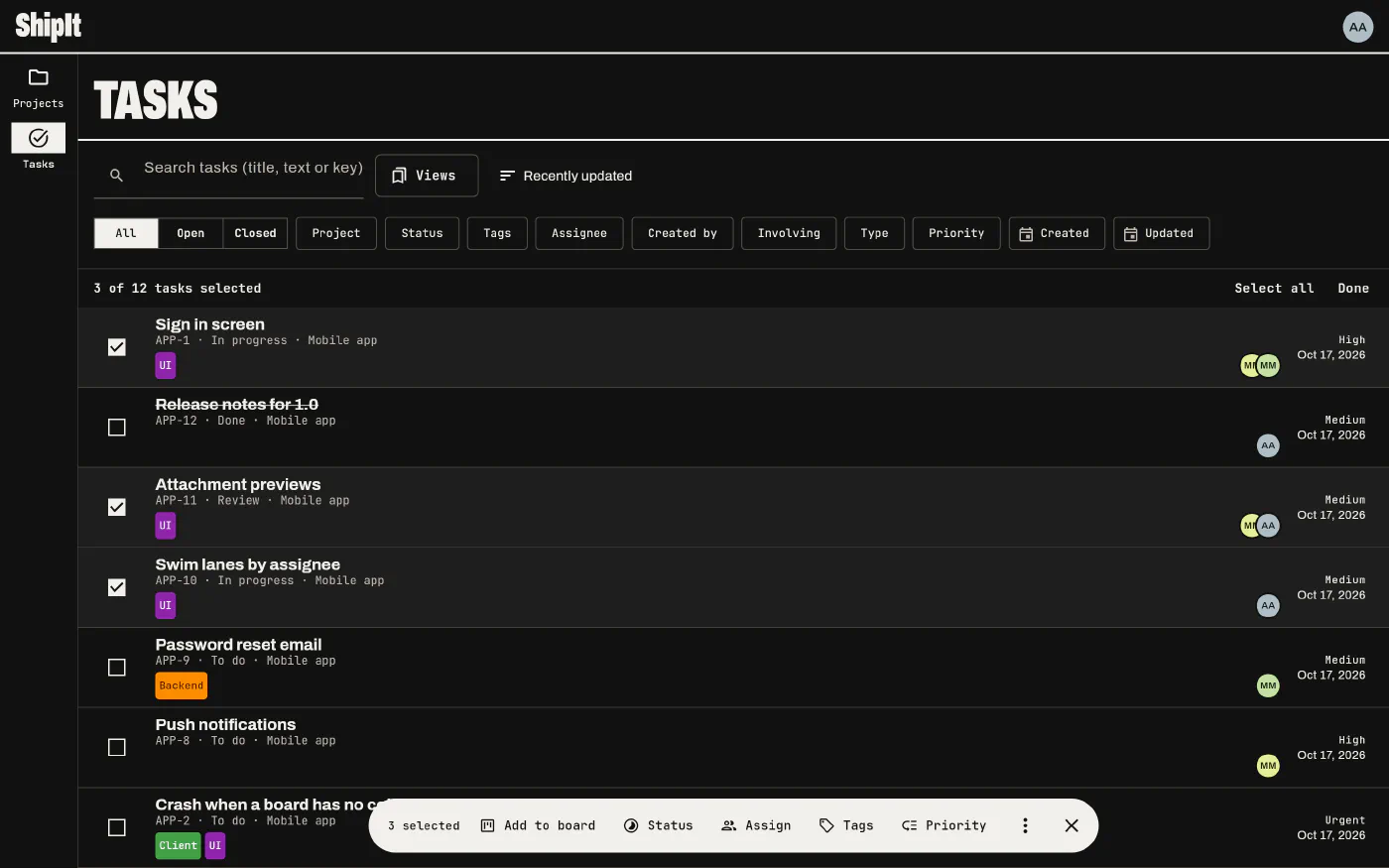
Long press a row, or press Select above the list, to start selecting; then tap the other rows, or Select all. A bar at the bottom acts on all the selected tasks at once:
- Add to board (tasks of one project), Status, Assign, Tags and Priority;
- under ⋮, Assign to me and Delete.
Each action is offered only when you may do it on at least one of the selected tasks, and tasks you can’t change are skipped. Done or × leaves the selection.
Saved views
Save as view keeps the current search and filters under a name. Your views are private: only you see them. Open one from Views, change it and save the changes, or save it as a new view. A view has its own link, so you can bookmark it.
On home
Tick Show on home when saving a view (or in the Views menu) and it becomes a panel on home with its task count and its first five tasks. Open view shows all of them.