
Tasks
A task is one piece of work: a feature, a bug, a story or a plain task. It opens in a dialog wherever it is listed, so you never lose your place.
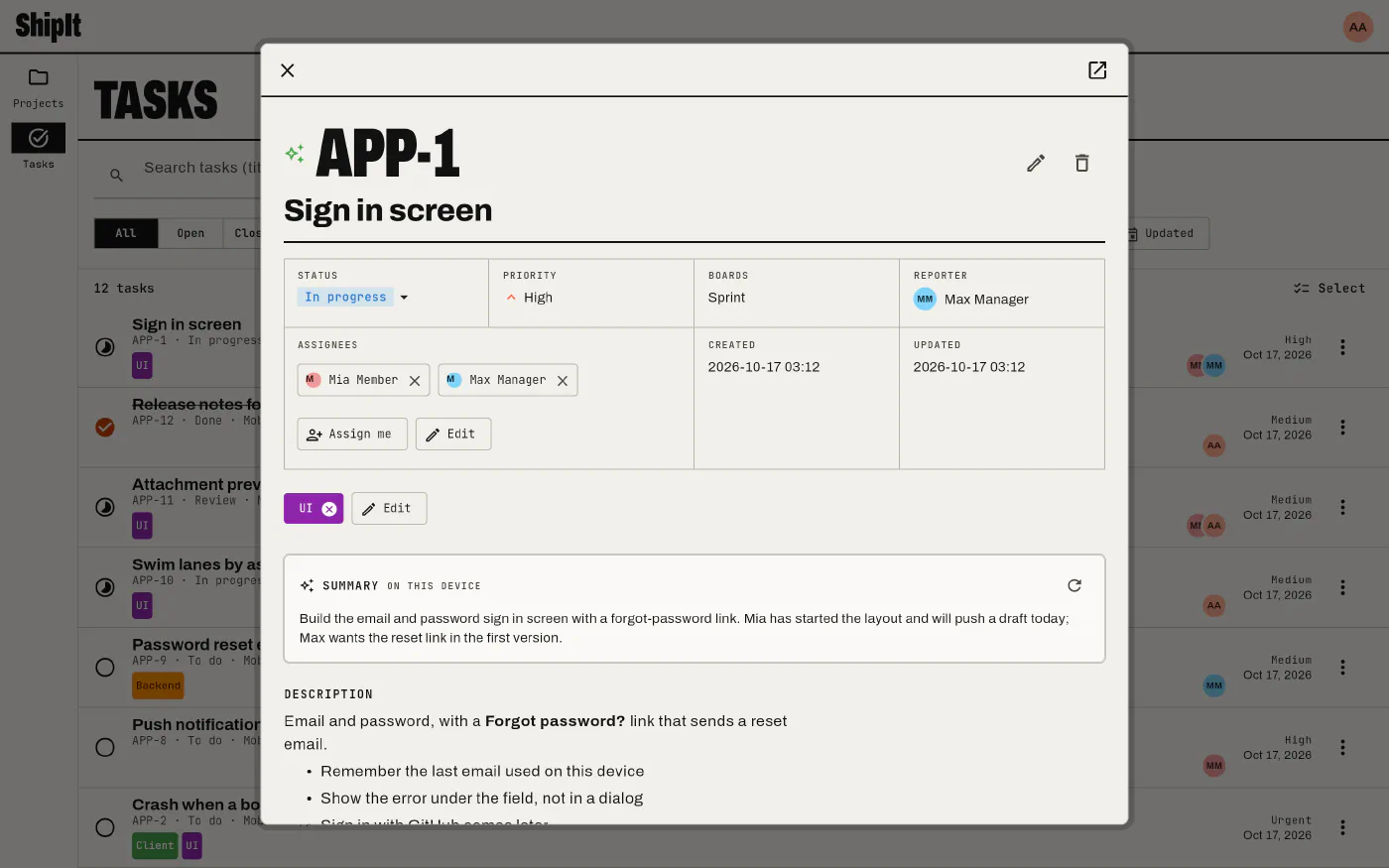
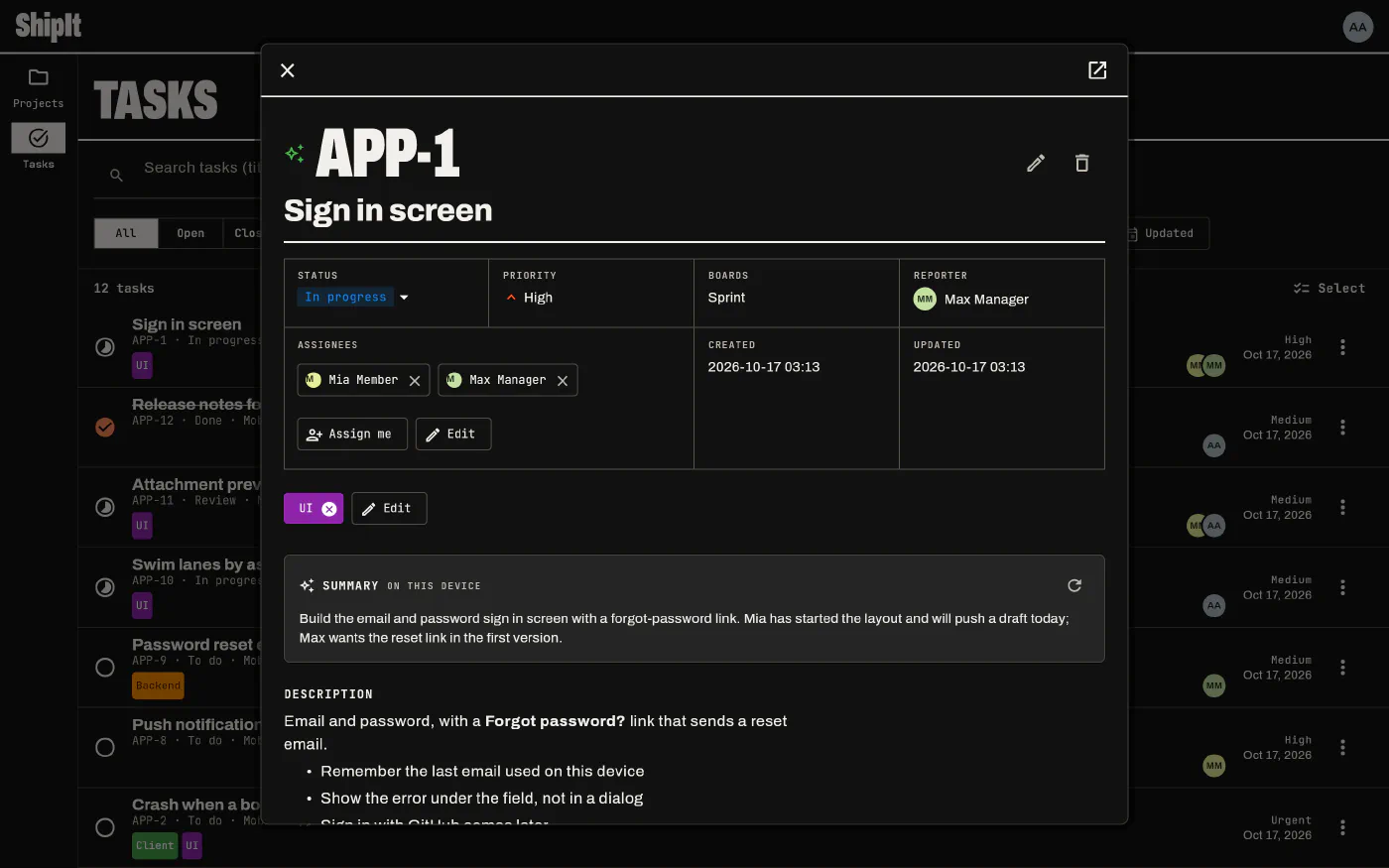
Open a task where it is
Tapping a task on a board, the Tasks screen, home, the backlog or a sprint page opens it in a dialog (full screen on phones). Everything can be changed from there. The open button at the top right goes to the task’s own page, for when you want a link to it or more room.
To change many tasks at once, select them on the Tasks screen or on a board.
The ⋮ menu on list rows and board cards has the quick edits: Edit, Assign to me or Unassign me, Assign…, Delete, and on boards Remove from board. Each entry shows only if your role in the project allows it.
What a task has
- A key made of the project key and a number (
APP-12), a title and a description. - A type: task, feature, bug or story, and a priority from low to urgent.
- A status of its project, and the boards it is on.
- Assignees: any number of the project’s members. Someone who was deactivated stays on the tasks they had, and shows as Inactive in the assignee picker, so you can unassign them.
- Tags, files, comments and votes.
Markdown, images and mentions
Descriptions and comments are written in markdown, with a toolbar for formatting. Paste an image (Ctrl+V or Cmd+V) or insert one from the toolbar and it is uploaded with the task. Type @ to mention someone; mentioned people find the task under the Involving me filter.
Comments and votes
Adding a comment marks the task as updated, so busy tasks rise in “recently updated” lists. You can edit your own comments; editing other people’s needs that permission. Votes go up or down, and the score shows on the card.
Summary
On devices with a built-in language model, opening a task shows a Summary card with a few lines on what the task is about and where its discussion stands. It is written on the device: Apple Intelligence on iPhone, iPad and Mac, Gemini Nano on supported Android phones, and Windows AI on Copilot+ PCs. Nothing is sent anywhere, and the summary isn’t stored; the ↻ button writes it again. Where the device has no such model, the card doesn’t appear.